
User's Manual
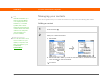
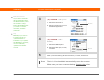


Table Of Contents
- Getting Started
- Table of Contents
- About This Guide
- Your Handheld
- Moving Info Between Your Handheld and Your Computer
- Your Photo and Video Organizer
- Your MP3 Player
- Your Microsoft Office File Manager
- Your Personal Information Organizer
- Your Memos and Notes
- Your Wireless Connections
- What can I do with built-in wireless technology?
- When would I use Wi-Fi or Bluetooth technology?
- Setting up a Wi-Fi network connection
- Accessing email and the web using Wi-Fi® functionality
- Entering basic Bluetooth® settings
- Setting up a Bluetooth® phone connection
- Accessing email and the web with Bluetooth® wireless technology
- Setting up a connection for Bluetooth synchronization
- Beyond the basics
- Your Email
- Your Text Messaging Tool
- Your Web Browser
- Your Expandable Storage
- Your Personal Settings
- Common Questions
- Product Regulatory Information
- Index

T|X Handheld 64
CHAPTER 6 Your Personal Information Organizer
Managing your contacts
Enter and organize all of your contact information for easy access and sharing with others.
Adding a contact
0
1
Press Contacts .
2 Add your contact information:
a. Select New.
b. Select each field in which you want to enter information, and enter it. Tap the
scroll arrows to view more fields.
Continued
Tip
If the first character you
enter in the Last Name
or Company field is an
asterisk (*) or another
symbol, that contact
always appears at the top
of the Contacts list. That’s
useful for an entry like
“If Found Call [your
phone number].”
Did You Know?
You can also enter one or
more contacts on your
desktop computer, and
then copy them to your
handheld by
synchronizing
.