
User's Manual
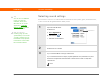
Table Of Contents
- Getting Started
- Table of Contents
- About This Guide
- Your Handheld
- Moving Info Between Your Handheld and Your Computer
- Your Photo and Video Organizer
- Your MP3 Player
- Your Microsoft Office File Manager
- Your Personal Information Organizer
- Your Memos and Notes
- Your Wireless Connections
- What can I do with built-in wireless technology?
- When would I use Wi-Fi or Bluetooth technology?
- Setting up a Wi-Fi network connection
- Accessing email and the web using Wi-Fi® functionality
- Entering basic Bluetooth® settings
- Setting up a Bluetooth® phone connection
- Accessing email and the web with Bluetooth® wireless technology
- Setting up a connection for Bluetooth synchronization
- Beyond the basics
- Your Email
- Your Text Messaging Tool
- Your Web Browser
- Your Expandable Storage
- Your Personal Settings
- Common Questions
- Product Regulatory Information
- Index

CHAPTER 13 Your Personal Settings
T|X Handheld
142
Correcting problems with tapping
Is your screen not responding to taps? Are you getting unexpected results when you tap?
For example, when you tap the number keyboard icon, does the Wi-Fi
®
dialog box open instead?
If this happens, it’s time to align the screen.
0
1 Open Touchscreen Preferences:
a. Go to Applications
.
b. Select Prefs .
c. Select Touchscreen.
2
Tap the targets on the screen as precisely as possible, and then select Done.
You need to tap at least three targets—maybe more if you don’t
tap carefully.
Done
»
Key Term
To u c h s c r e e n Another
name for your handheld’s
screen and its internal
circuitry.
Tip
If your screen is not
responding to taps, use
the 5-way navigator to
open Touchscreen
Preferences.
NOTE