
User's Manual







Synchronizing e-mail between the handheld and the desktop
235
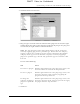
5. Select one of the following:
6. (Optional) Select Set Selection As Default to apply the options you selected to
all subsequent HotSync operations. Otherwise, the settings apply to the next
HotSync operation only.
7. Click OK.
8. Perform a HotSync operation.
Synchronization limits
You can synchronize more than one account during the same HotSync operation.
The maximum number of accounts you can synchronize are as follows:
■ 1 Simple MAPI account (for example, an account set up using Outlook Express
or Eudora)
■ 1 Extended MAPI account (for example, an account set up using Outlook)
■ 1 Lotus Notes account
■ 5 combined direct POP or direct IMAP accounts
If you attempt to synchronize more than the limit for a particular type of account
during a HotSync operation, you will receive an alert prompting you to deactivate
any accounts over the allowed number.
Using SSL with the conduit
When you set up an e-mail account, you can choose to use a secure connection
(Secure Sockets Layer or SSL) for sending and receiving e-mail messages. The
Palm VersaMail HotSync Conduit supports SSL when synchronizing with an
e-mail account only if that account uses one of the following desktop e-mail
applications (mail clients):
■ Outlook
■ Outlook Express
■ Eudora
The conduit does not support SSL for accounts set up as direct POP or direct IMAP.
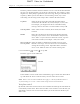
Synchronize
Active Accounts
Select this option to include active accounts in the next
HotSync operation. For an account to be synchronized, you
must have selected the option Check this box to synchronize
this mail account when you performed a HotSync operation.
Do Nothing
Select this option to exclude e-mail accounts from the next
HotSync operation.
DRAFT Palm, Inc. Confidential