
User's Manual





Getting, sending, and managing e-mail
185
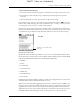
To change the size of a column in the folder’s list view:
NOTE Changing column size is available for one-line message view only.
1. Tap and hold the stylus on the column divider.
2. Drag the column divider to change the width of the column.
You can also change the font within an individual message. This change affects the
selected message only.
To change the font of a message:
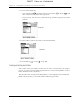
1. On the message screen, press Function + Menu .
2. Select Options.
3. Tap Font
4. Tap the Message Font pick list and select the font you want.
Drag the column
divider left or right to
make the column
narrower or wider
FLOW
NEW SCREEN
FLOW
DRAFT Palm, Inc. Confidential