
Outback FM80 User Manual

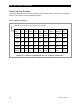





MATE3-Class Screens
900-0009-01-00 Rev D 71
Device Data Logs
Users of the MATE3 or MATE3s can create Device Data Logs for the FLEXmax charge
controller. The Data Logs can then be uploaded and saved to an SD card.
Saving Data Logs for the FLEXmax Controller
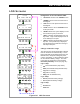
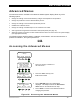
Figure 78 Uploading and Saving a Data Log for the FLEXmax
To create a data log for the FLEXmax Charge Controller:
1. Access the Main Menu as shown in Figure 16.
2. Select the Device Data Logs menu.
3. Select FLEXmax Charge Controller menu.
4. Select Upload and Save Data Log on the FM Charge
Controller Data Log menu.
5. Select one of the two options.
Press <New> to give the new data log a unique
name. Or
Press <Save> to save the data log over the name
that is highlighted on the list.
6. After saving the data log is complete, press <Continue>
to return to the Upload and Save Data Log screen.
To save a new data log over the name highlighted on the list:
1. Use the control wheel to scroll through the list.
2. When the name to be replaced is highlighted, press
<Save>.
3. Wait for the message confirming that the profile has been
saved to the SD card.
4. Press <Continue> to return to the Upload and Save
Data Log menu.
To create a new name for the data log (up to 8 characters
maximum):
1. Use the control wheel to scroll through the available
characters.
2. Use <> and <> to move to the next character location.
3. Press <Delete> to erase the character that is highlighted.
4. Press <Save> to save the new data log on the SD card.
4. Press <Continue> to return to the Upload and Save
Data Log menu.
Returns to the Upload and
Save Data Log screen.
Returns to the Upload and Save
Data Log screen.