
Use Instructions

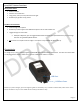
Table Of Contents

Page | 9
Lynq PRO™ Button Functions
Menu/Select Button
• Power on device
• Confirm current selection
• Long press (~3 sec) turns on/off screen front light
• Double tap to go back one (1) screen
Up/Down Arrow Buttons
• Scroll through menu options
• Double tap in select apps to view additional options such as team member list
• Toggle through on-screen data
o Example: In My View, you can toggle between GPS coordinates and speed which then you can change
the units using the Menu/Select button.
• UP arrow to turn on/off screen front light. This option is only available at device start up.
Charge device
To charge the Lynq PRO™, simply plug the included USB cable into the bottom of the device. The other end of the cable
can be plugged into another power source, such as a wall power outlet or computer.
As the Lynq PRO™ charges, you’ll see a lightning bolt on the battery icon, as shown in above table, either in the status
bar (if the device is on) or in the middle of the screen (if the device is off).
USB Port
USB Port Cover
DRAFT