
Operation Manual




- 40 -
Connecting to a Computer
1
1. Setup
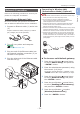
Automatic Setup (Push Button)
If the wireless terminal (computer, tablet,
smartphone, etc.) supports WPS-PBC (push
button), then you can use the WPS button to
connect via wireless (AP mode).
Follow the procedure below to connect.
1 Conrm the position of the WPS
button in the user’s manual provided with
the
wireless terminal (computer, tablet,
smartphone, etc.)
2 Turn on the printer.
3 Press the scroll button several times to
select [Wireless(AP Mode) Setting],
and then press the <ENTER> button.
4 Enter the Admin password.
(The default password is 999999.)
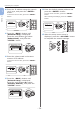
5 Select [Wireless(AP Mode)], and then
press the <ENTER> button.
6 Select [Enable], and then press the
<ENTER> button.
7 Press the scroll button to select
[Automatic Setup (Push Button)],
and then press the <ENTER> button.
8 Select [Yes], and then press the
<ENTER> button.
9 Start WPS-PBC (push button) on the
wireless terminal (computer, tablet,
smartphone, etc.).
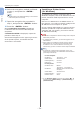
Manual connections
If the wireless terminal (computer, tablet,
smartphone, etc.) does not support WPS-PBC
(push button), then you can input the machine’s
SSID and password into the wireless terminal
(computer, tablet, smartphone, etc.) to connect.
Follow the procedure below to connect.
1 Turn on the printer.
2 Press the scroll button several times to
select [Wireless(AP Mode) Setting],
and then press the <ENTER> button.
3 Enter the Admin password.
(The default password is 999999.)
4 Select [Wireless(AP Mode)], and then
press the <ENTER> button.
5 Select [Enable], and then press the
<ENTER> button.
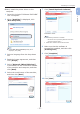
6 Press the scroll button several times
to select [Manual Setup], and then
press the <ENTER> button.
7 Conrm the [SSID] and [Password]
that are displayed on the printer.
8 Input the printer’s [SSID] and
[Password] that were conrmed
in step7 for the wireless terminal
(computer, tablet, smartphone, etc.).