
Extra Information






- 77 -
Deleting or Updating the Printer Drivers
6
6. Troubleshooting
Updating a Printer Driver
You can update printer drivers.
For Windows PS Printer Driver
Note
● You must be logged in as an administrator to complete
this procedure.
● Restart the computer before you start removing a printer
driver.
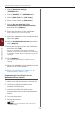
1 Click on [Start] and then select
[Devices and Printers].
2 Right-click the
Your Printer
icon and
select [Printing preferences].
If you have installed multiple printer drivers,
select the type of driver you want to update from
[Printer Properties].
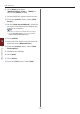
3 Select the [Print Options] tab, and
click on [About].
4 Check the version information and then
click [OK].
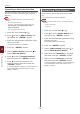
5 Delete the printer driver you want to
update.
Note
● Delete all the printer drivers to ensure updating.
Reference
● “Deleting a Printer Driver” P.76
6 Install a new printer driver.
Reference
● For details on how to install a printer driver, refer to
the User’s Manual (Setup).
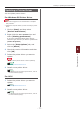
For OS X
1 Delete the printer driver you want to
update.
Reference
● “Deleting a Printer Driver” P.76
2 Install a new printer driver.
Reference
● For details on how to install a printer driver, refer to
the User’s Manual (Setup).