
Extra Information





- 70 -
Changing Network Settings From the Web Page
5
5. Network Settings
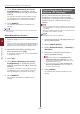
3 Select [Network Setup]>
[IEEE802.1X].
4 Select [Enable] for [IEEE802.1X].
5 Select [EAP-TLS] for [EAP Type].
6 Enter a user name in [EAP User].
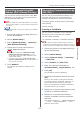
7 Select [Do not use SSL/TLS
Certicate for EAP authentication]
and then click [Import].
8 Enter the le name of the certicate.
Only a PKCS#12 le can be imported.
9 Enter the password of the certicate and
then click [OK].
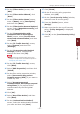
10 Select [Authenticate Server] and then
click [Import].
11 Enter the le name of the CA certicate
and then click [OK].
Specify a certicate issued by the certicate
authority from which the RADIUS server obtained
a certicate. A PEM, DER, and PKCS#7 le can be
imported.
12 Click [Submit].
The network card reboots to enable the new
settings.
13 When the standby screen appears on the
printer, turn off the printer.
14 Go to “Connecting Your Printer to an
Authentication Switch” P.70.
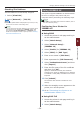
Connecting Your Printer to an
Authentication Switch
1 Make sure that the printer is turned off.
2 Connect an Ethernet cable to the
network interface port.
3 Connect the Ethernet cable to the
authentication port of an authentication
switch.
4 Turn on the printer.
5 Set up the printer.
Reference
● For details on the initial setup, refer to the User's
Manual (Setup).