
Extra Information





- 61 -
5
5. Network Settings
5. Network Settings
This chapter explains network settings for your printer.
Changing Network Settings From the Web Page
This section explains how to change the network settings from the printer’s web page.
To access the printer’s web page, your computer must meet the following conditions.
● TCP/IP must be enabled.
● Microsoft Internet Explorer 6.0 or later, Safari 3.0 or later, or Firefox 3.0 or later is installed.
Memo
● Ensure that the security setting of the web browser is set to a medium level.
● To enter the [Admin Setup] menu, it is necessary to log in as the administrator. The factory default administrator password is
“999999”.
Reference
● Some of the following settings can be performed on other utilities.
Informing the End of Consumable Life
and Errors by E-mail (E-mail Alert)
You can set the printer to send an error
notication e-mail when an error occurs. You can
set when to be notied:
● On a periodical basis
● Only when an error occurs
Conguring Your Printer
You can congure the settings for e-mail alert
using the web page.
Memo
● When you specify a domain name in [SMTP Server],
congure the DNS server in the [TCP/IP] setting.
● You need to set the mail server to allow the printer to
send E-mail. For details on the mail server setting, ask to
your network administrator.
● If you use Internet Explorer 7, be sure to congure
the settings below before you send a test mail. In the
browser, select [Tools] > [Internet Options], then
click [Custom Level] on the [Security] tab. Then
select [Enable] in [Allow websites to prompt for
information using scripted windows].
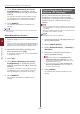
1 Access the printer’s web page and log in
as the administrator.
2 Select [Admin Setup].
3 Select [Network Setup] > [Email] >
[Send Settings].
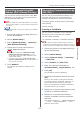
4 Follow the on-screen instructions to
specify detailed settings.
5 Select [Set detail of the SMTP
Protocol].
6 If necessary, you can congure
[Security settings], [Congure
attached information], and [Others].
7 Click [Submit].
The network card reboots to enable the new
settings.
Periodic Alerts
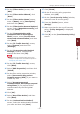
1 Access the printer’s web page and log in
as the administrator.
2 Select [Admin Setup].
3 Select [Network Setup] > [Email] >
[Alert Settings].
4 Enter an e-mail address to receive the
alerts.
5 Click [Setting] for the specied address.
[Copy] is useful when you want to apply the alert
conditions to another address.
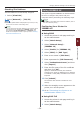
6 Follow the on-screen instructions to
specify detailed settings.
7 Click [OK].