
Extra Information






- 56 -
Windows Utilities
4
4. Using Utility Software
Network Setting Plugin
You can set the network with the Conguration
Tool. Prior to setting, please install the Network
Setting plugin.
Reference
● For how to install Conguration Tool, please refer to
“Installing Utilities” P.52.
Icon
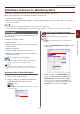
The meaning of each icon is as shown below.
Icon Details
Searches again for the printer.
Changes search conditions for the printer.
Changes IP address for the printer.
Restarts the printer.
Changes network password.
Displays the printer web page.
Searches for the machine on the
network
Searches for the printer.
1 Select [Network Setting] from the
[Plug-ins] menu.
2 Select [Discover Devices].
Search results are displayed.
Change the IP Address
Changes IP address for the printer.
1 Select the printer from the device list.
2 Click icon.
3 Change the settings as required.
4 Click on [OK].
5 Enter the network password and click
[OK].
The default password is the last 6 alphanumerical
digits of the MAC address.
6 Click on [OK] to restart the printer.
OKI LPR Utility
You can use the OKI LPR utility to perform a
print job via network, manage print jobs, and
check the printer status.
Reference
● For how to install OKI LPR utility, please refer to
“Installing Utilities” P.52.
In order to use OKI LPR Utility, TCP/IP must be
activated.
Note
● The OKI LPR utility cannot be used for shared printers.
● Please use the standard TCP/IP port.
Launching the Utility
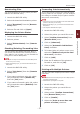
1 Click on [Start], and select [All
Programs] > [Okidata] >
[OKI LPR Utility] > [OKI LPR Utility].
Adding a Printer
You can add a printer to the OKI LPR utility.
Note
● Administrator privileges are required.
● If you cannot add a printer in Windows, shut down the
OKI LPR utility, right-click on [Start] > [All Programs] >
[Okidata] > [OKI LPR Utility] > [OKI LPR Utility], and
then select [Run as administrator] to launch.
Memo
● You cannot add the printer already registered in the
OKI LPR utility. If you want to change the port, select
[Conrm Connections] in [Remote Print] menu.
1 Launch the OKI LPR utility.
2 Select [Add Printer] from the [Remote
Print] menu.
3 Select [Printer Name] and enter the IP
address.
Network printers and printers connected to the
LPR port are not displayed.
4 When selecting a network printer, select
[Discover].
5 Click on [OK].