
User's Manual


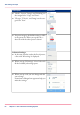


The locations
Introduction
When you tap the Print tile on the user panel twice a window with locations opens. When
you tap the Scan tile, the locations are shown in the Smart Access. Location tiles can be:
•
The Smart Inboxes location.
Default and always presented. When you tap the Smart Inboxes tile a window with
all Smart Inboxes opens. So when you create a personal Smart Inbox you can find it
under the general Smart Inboxes tile.
•
A USB location.
Presented when you insert a USB device
•
Remote locations via 'FTP' or 'SMB'.
Presented when you create an external location via 'FTP' or 'SMB'.
•
A cloud location via 'WebDAV'.
Presented when you create an external location via 'WebDAV'.
•
Eneo. Océ solution for document distribution.
Presented when you create an external location via Eneo.
When you tap one of these locations, a window with a list of the location's folders
and files opens. You can select a file and tap the green button to print your file.
Note:
For more information on how to configure and create an external location see, ‘Configure
your locations’ on page 151 and ‘Create an external location’ on page 153.
Chapter 2 - Get to Know the Printing System 55
The locations