
9.0

4
Working on your Desktop
Dragon NaturallySpeaking User’s Guide
52
■
“Stop” or “Cancel” to stop the mouse from moving
■ “Up,” “Down,” “Left,” “Right,” “Upper Left,” “Lower Left,” “Upper
Right,” or “Lower Right” to change the direction in which the mouse
is moving
■ “Faster,” “Much Faster,” Slower,” or “Much Slower” to change the
speed at which the mouse is moving
■ “Click,” “Double Click, “Right Click,” or “Left Click” to click the
mouse buttons
■ “Go to Sleep,” “Stop Listening,” or “Microphone Off” to turn the
microphone off
To specify which mouse button (left, right, or center) is being held
down during mouse drags or if you want the
SHIFT, CTRL, or ALT
key held down during the mouse drag, use one of these commands
before saying one of the drag commands in the table above:
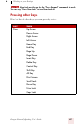
■ Left
■ Middle (requires a three-button mouse)
■ Right
■ Shift
■ Control
■ Alt
■ Right Shift
■ Right Control
■ Right Alt
For example, to drag with the
SHIFT key held down, you could say
“Shift Mouse Drag Up.” To drag with the right
ALT key held down (the
ALT key on the right side of the keyboard), you could say “Right Alt
Drag Mouse Upper Left.”