
9.0

4
Working on your Desktop
Dragon NaturallySpeaking User’s Guide
51
Instead of “Drag,” you can also say “Control Drag” and “Shift Drag”
to drag while holding down the CTRL or SHIFT key.
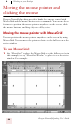
Moving the pointer with the mouse motion
commands
In addition to the mouse movement methods described above, you
can also move the mouse by using the mouse motion commands. Say,
for example, “Move Mouse Right.” The mouse pointer will begin
moving to the right and will keep moving until you say “Stop.”
Enabling the mouse motion commands
To use the mouse motion commands:
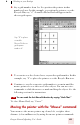
1 From the Tools menu on the DragonBar, choose Options and then
the Commands tab.
2 Select “Enable mouse motion commands” and click OK.
3 Click the Speed button to choose how fast the mouse pointer
moves when you use a mouse motion command.
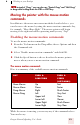
The mouse motion commands
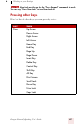
Here is a summary of the available mouse motion commands.
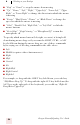
While the mouse is moving, you can say any of the commands above.
You can also say:
SAY THEN A
DIRECTION
THEN A
SPEED
(OPTIONAL)
Move Mouse
Mouse Move
Drag Mouse
Mouse Drag
Up
Down
Right
Left
Upper Left
Lower Left
Upper Right
Lower Right
Fast
Faster
Much Faster
Very Fast
Slow
Slower
Much Slower
Very Slow
TIP