
9.0

4
Working on your Desktop
Dragon NaturallySpeaking User’s Guide
43
number of scroll bar arrow clicks (up to 20). For example, say “Move
Down 4” or “Move Up 10.”
You can scroll horizontally by saying “Move Left” and “Move Right” and
then a number of scroll bar arrow clicks (up to 20). For example, say
“Move Left 10” or “Move Right 5.”
Opening lists and making selections
You can activate any list box by saying the list box name.
To open a list box:
1 Say the name of the list box you want to open.
2 Say "Show Choices," "Drop List," or "Open List." The list box
opens to show all the choices available in the list.
To make a selection from an open list
1 Say the full name of the selection.
2 Say "Move Down" or "Move Up" and the number of places your
selection is from the current selection.
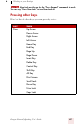
Pressing keyboard keys
You can activate Windows
®
menus and controls by pressing keys. With
Dragon NaturallySpeaking you can “press” any key on your keyboard
by voice. You can press letters, numbers, modifier keys (
SHIFT,
CTRL, and ALT), and so on.
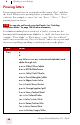
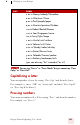
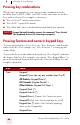
You can say “Press,” “Press Key,” or “Type”—all three voice commands
work the same way.
“Scratch That” will not erase keystrokes dictated with the Press Key
commands. You must select the text by voice or mouse and delete it or say
“Press Delete.”
NOTE