
9.0

4
Working on your Desktop
Dragon NaturallySpeaking User’s Guide
41
Selecting icons on the desktop
You can use voice commands to select icons on the Windows
®
desktop.
To select an icon on the desktop:
1 Switch to the Windows
®
desktop. To do this by voice, minimize all
open applications and place the mouse pointer over the desktop
icon. Say “Mouse Click” to make the desktop active.
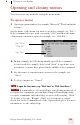
2 Say the name of the icon (for example, “My Computer”). Dragon
NaturallySpeaking types the icon name and Windows
®
selects it.
3 To select another icon, say “Move” and then the direction (up,
down, left, right) and number of icons (up to 20).
For example, say “Move Right 1,” “Move Down 2,” or “Move Up 3.”
After you select an icon, you can say “Press Enter” to start or open it
and “Press Shift F10” to display its menu (as if you right-clicked the
icon with the mouse.)
You can also use voice commands for these actions. See “Marking and
dragging objects” on page 50.
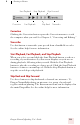
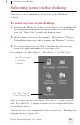
Say “Move Down 2”
to select Recycle Bin
Say “My Computer”
to select My
Computer