
9.0

4
Working on your Desktop
Dragon NaturallySpeaking User’s Guide
40
Selecting buttons, tabs, and options
When Dragon NaturallySpeaking is running, you can select any
button, check box, text box, or other dialog box option you see by
saying it’s name. If that doesn’t work, say “Click” and then its name.
For example, to select a check box labeled “Toolbar,” say “Toolbar” or
“Click Toolbar.” To clear the check box (deselect it), say its name again.
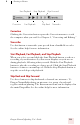
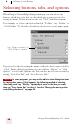
You can select tabs by saying the name of the tab, alone or preceded by
“Click.” In the dialog box pictured, you could say “Options” or “Click
Options” to select the Options tab. You can also move between tabs by
saying “Go to Next Tab” and “Go to Previous Tab.”
In some programs, you may not be able to select dialog box items
by saying their names. If this happens, the following method of selecting
items may work: say “Tab Key” repeatedly to move to the item you want,
then say “Press Space Bar” to select it. See also “Moving the mouse pointer
and clicking the mouse,” on page 48.
Say “Wrap to window” or
“Click Wrap to window”
NOTE