
9.0

2
Installation and Training
Dragon NaturallySpeaking User’s Guide
18
Check your volume
When the “Adjust Your Microphone: Volume Check” screen appears,
click the “Start Volume Check” button and then read aloud the text
displayed in the box.
When the program beeps to indicate it has finished checking the
volume, click Next.
Sound quality check
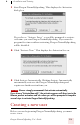
When the “Adjust Your Microphone: Quality Check” screen appears,
click “Start Quality Check” and then read aloud the text displayed in
the box.
The program beeps when it has finished evaluating the sound quality
of your system. If Dragon NaturallySpeaking displays “PASSED,”
click the Next button to continue.
Training a new user
You will not be prompted to start General Training if you elected to
skip initial training when you created the user.
Performing the training when creating a user will enhance your initial
recognition accuracy. Initial training includes reading aloud for several
minutes from a list of available texts.
For more information on training a mobile user, see the online
help.
A yellow arrow shows you where to start reading. To take breaks while
you're training the program, click Pause.
To advance through the first two screens, you must say the sentences
without pausing. For the rest of the screens, it's okay to pause in the
middle of a sentence.
When the words change color, it means the computer has heard and
recognized them. If you keep reading the same words, and the
NOTE