
User's Manual




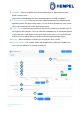

Table Of Contents

Hempasense Track Version 1.5
Page | 7
3 slow red blinks – device does not accept the shake, as not enough time has
passed since the last shake. This prevents accidental ‘double’ shakes.
Please check the status of the job in the mobile app immediately to ensure
you are on track with the process. To record next phase, wait a few seconds
before shaking again. It is always possible to “undo” a shake/ go back one
step in the job status by using the progress buttons in the mobile app.
Yellow flash every 30 sec. – device is awake and monitoring.
Software
The Hempasense Track software can easily be accessed from both web and mobile app.
No software installation is required. The same log in details grant the user access to both
web and mobile app.
Home page
The Hempasense Track software can be easily accessed from MyHempel.com. Log in
from a web browser to set up a job. All jobs created can be accessed from your mobile de-
vice via the Hempasense Track app available on App Store and Google Play.
It is possible to include your colleagues to the Hempasense Track software. In order to
add more users to your MyHempel Hempasense Track account, please follow the guide
under the section MyHempel.
Entering MyHempel from a web browser click on the icon for Hempasense
Track. The home page is the starting page in the web app. It gives you a
quick overview of your recent jobs, and by clicking on a job you can con-
tinue your work or edit the job information.
1. Home - Clicking on this button will always take you back to the Home page (this
page). It appears at the top of every page.
2. Recent Jobs - This list shows the top 5 most recently created jobs. Click on any job
to see the details and edit.
3. + New - To create a completely new job, click on this button.
4. ≡ List - To see a full list of all jobs created, click on this button.
5. My Sensors - This is an overview of all your sensors, showing the current ambient
temperature, relative humidity and battery level of each sensor.