
User's Manual
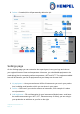
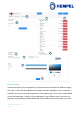
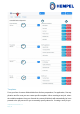

Table Of Contents

Hempasense Track Version 1.5
Page | 16
should choose to assign a template for the entire job, or you can choose not to select any
template. Notice: when a template has been assigned to a job, you cannot add or edit in
the labels for that specific job neither can you go back and add a template later in the pro-
cess of that specific job.
1. Template name – Name the template you are about to create.
2. Select label – Add from the drop down menu labels you want to include in the tem-
plate for the specific categories. The option of labels shown in the drop down menu
is based on the list of added custom fields in that particular custom field category
(The “My” list under Custom fields).
3. My Custom fields labels template – Here you can see all your created templates.
These templates can be assigned to new jobs.
4. Reset / Save template – Here you can refresh the page if you have made any
changes to a template. Press “+ Save template” when you have selected and sorted
needed labels in the various categories.
5. Edit/ Delete – You can edit or delete your created templates.
Warning, changes to an existing template will not change anything in existing jobs
using that particular template. All changes will only work in new jobs created after
the template changes. It is recommended to create a new template instead of edit-
ing in existing templates.
2
2
2
2
1
3
4
5