
User's Manual




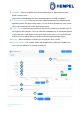

Table Of Contents

Hempasense Track Version 1.5
Page | 10
Job page
After having created a new job or selected a job from the home menu, you will see the Job
page. To the right you can see the specifications for the job and to the right you can see
the actual status of the coats included in the job.
1. Job status - This status indicates the process the coat is currently at.
Status will start at “Pending” and move onwards to “Coating”, “Drying” and “Done”.
When shaking the sensor the status will change.
2. Edit (Coat related) – Click here to open the specific coat information page. Here you
can add components to be used for the specific coat, select equipment and specify
custom fields “Per coat”.
3. Add components for the specific coat – Enter the batch/lot number and product de-
scription per coat. For Hempel paint use the mobile app’s scan function to easily in-
clude paint components per coat, just scan the batch/lot number on the can.
4. Add equipment for the job – Select the equipment to be used per coat for measur-
ing Substrate temp, WFT and DFT. The equipment available in the drop-down
menu is based on the “My equipment” list to be found under Settings.
5. Next– “Next” button, can be used while the job is in progress. When ‘Next’ is clicked
the next phase in the process is started and the status next to the coat will change.
6. Undo - If ‘Next’ button have been pushed or the sensor have been shaken by a
mistake, you can quickly go back one the step in the job by pressing “Undo”.
7. Edit - Click here to edit or add to the job information entered when the job was cre-
ated. This shouldn’t be edited when application has started, expect if a coat needs
to be added or to write Summary and Report text.
8. Report - When the job is done and all coats have status “Done”, click here to create
the report.