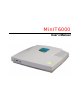
MinIT6000 User's Manual
MiniIT6000 Windows Based Terminal Limited Warranty Software Warranty: NLynx warrants that for a period of ninety (90) days from the date of purchase by the End User, its Software Products shall confirm to its published specifications under normal usage. NLYNX DOES NOT WARRANT THAT THE OPERATION OF THE SOFTWARE WILL BE UNINTERRUPTED OR ERROR–FREE, OR THAT ALL SOFTWARE DEFECTS WILL BE CORRECTED. In the event a Software Product fails to comply with the warranty set forth above, NLynx will replace the product.
Table of Contents MINIIT6000 WINDOWS BASED TERMINAL LIMITED WARRANTY............................ 2 SOFTWARE WARRANTY: .................................................................................................... 2 HARDWARE WARRANTY:................................................................................................... 2 WARRANTY LIMITATIONS: ................................................................................................ 2 COPYRIGHT AND TRADEMARKS .........................
CONFIGURE TERMINAL PROPERTIES ............................................................................ 45 CONTROL PANEL .............................................................................................................. 45 DATE / TIME ..................................................................................................................... 46 DESKTOP STYLE ............................................................................................................... 46 DISPLAY ....
GENERAL INFORMATION................................................................................................ 100 USING INTERNET EXPLORER........................................................................................... 101 ABOUT ............................................................................................................................. 101 CONNECT TO THE INTERNET VIA AN ETHERNET LAN ................................................. 101 INTERNET OPTIONS ......................
Copyright and Trademarks Copyright Notice This manual, as well as the software described in it, is furnished under license. No part of this publication may be reproduced, transmitted, stored in a retrieval system, or translated into any human or computer language, in any form or by any means, electronic, mechanical, magnetic, optical, chemical, manual or otherwise, without the prior written permission of NLynx Technologies. © 2003 NLynx Technologies, Inc. All rights reserved.
End User License Agreement End User License Agreement (EULA) EULA for Microsoft Windows CE Operating System for Windows-based Terminal Devices IMPORTANT—READ CAREFULLY This End User License Agreement (EULA) is a legal agreement between you (either an individual or a single entity) and the manufacturer (MANUFACTURER) of the special purpose computing device (SYSTEM) you acquired which includes certain Microsoft software product(s) installed on the SYSTEM and/or included in the SYSTEM package (SOFTWARE).
2. Description of Other Rights and Limitations. • Speech/Handwriting Recognition If the SYSTEM SOFTWARE includes speech and/or handwriting recognition component(s), you should understand that speech and handwriting recognition are inherently statistical processes; that recognition errors are inherent in the processes; that it is your responsibility to provide for handling such errors and to monitor the recognition processes and correct any errors.
if you desire to contact MANUFACTURER for any other reason, please refer to the address provided in the documentation for the SYSTEM. 6. Export Restrictions. You agree that you will not export or re-export the SOFTWARE to any country, person, or entity subject to U.S. export restrictions. You specifically agree not to export or re-export the SOFTWARE: (i) to any country to which the U.S.
• No Liability for Consequential Damages MANUFACTURER OR MANUFACTURER’S SUPPLIERS, INCLUDING MS AND ITS SUPPLIERS, SHALL NOT BE HELD TO ANY LIABILITY FOR ANY DAMAGES SUFFERED OR INCURRED BY THE END USER (INCLUDING, BUT NOT LIMITED TO, GENERAL, SPECIAL, CONSEQUENTIAL OR INCIDENTAL DAMAGES INCLUDING DAMAGES FOR LOSS OF BUSINESS PROFITS, BUSINESS INTERRUPTION, LOSS OF BUSINESS INFORMATION AND THE LIKE), ARISING FROM OR IN CONNECTION WITH THE DELIVERY, USE OR PERFORMANCE OF THE SOFTWARE.
• • • • • Note on Java Support.
MinIT6000 General Specifications Items Specifications Processor • SIS 550 200 MHz processor Communication • • • • • • Microsoft RDP and Citrix ICA protocol compliant 10/100 dual speed Ethernet, Twisted Pair (RJ45) One parallel port (DB-25 Female connector) Enhanced ps/2 keyboard interface Enhanced ps/2 mouse interface Two USB ports Embedded O.S. • • Microsoft Windows CE4.2 Microsoft IE 6.0 • • Support 640x480, 800x600, 1024x768, 1280x1024 with high color. Flicker free, max.
Terminal Installation MinIT 6000 Thin Client Terminal The following pictures provide a front and rear view of your new MinIT 6000 Thin Client Terminal.
Basic Hardware Installation 1. 2. 3. 4. Connect the monitor to the VGA connector. Connect the PS/2 keyboard to the Keyboard connector. Connect the PS/2 mouse to the Mouse connector. If you are ready to use a network connection, connect a CAT5 UTP cable to the Ethernet connector. 5. Connect the power adapter cable to the Power connector. 6. Plug the power adapter AC cord into an AC outlet. 7. You are ready to use the Terminal now. Mounting the Terminal The terminal can be mounted permanently on a wall.
Setup Wizard About The Setup Wizard is used for the terminal's initial setup but will also run after resetting the unit back to its factory defaults. To reset the unit back to its defaults, refer to the System section under Configure Terminal Properties. You can use the Setup Wizard to set the basic terminal network configuration and display parameters however; any of these parameters can be changed later by entering the “Control Panel” and selecting the appropriate icon.
EULA (End User License Agreement) Please read the license agreement carefully.
Optional Information dialog boxes will display in succession) to manually select your static IP information as the default. Selecting Yes will take you directly to the optional Information dialog box will display.
Display Settings Printer Setup
Printer Port Note: If you select "Network" for your printer port, the "Network" entry box we become available to type in the path information. Printer Model Select the Manufacturer and Model number of your printer.
Printer Name Set Printer Default
Additional Printers If you select yes, you will be taken back to the “Printer Port” step. Finish • Click Finish, to apply your selections and quit the Setup Wizard.
Connection Management Connections Management From the terminal desktop, click on the Connection Manager icon (shown below) to bring up the Terminal Connection Manager dialog box. Connection Manager Desktop Icon Once the Connection Manager dialog box is open, you can select either Connections or Configure dialog box to manage your terminal's network connections.
Using the Connections Dialog Box Use the connection manager to create or edit network connections to a specified server. Connect Click on the Connect button to make a network connection. You can also double-click on a selected connection in the Connection Name to make a network connection with server. End You can click on the End button to end any active connection process listed in status field. The End is not available if your session is not active. The End button is disabled in the default.
Please refer to the Creating A New Connection section for more information about adding a different type connection. Edit Click on the Edit button to edit the properties of a selected connection. Please refer to the Editing A Connection section for more information about editing a connection. Delete Click on the Delete button to delete a connection. When you click this button, a “Connection” dialog box displays. Click on the Yes button to complete the deletion. Click on the No button to cancel the deletion.
Startup Click on the Startup button to specify which connection option you want to be the default when the terminal first powers up. The Connection Startup dialog box displays after the Startup button is pressed. Using the Connection Startup dialog box, you can pre-set sessions to automatically connect to their servers when terminal is turned on. Connection Startup Dialog Box Make the selected connection your default connection.
Creating a new Connection Creating A New Connection The New Connection dialog box, as follows, allow user to create new network connections. New Connection Dialog Box Choosing a Connection Protocol From the pull-down list bar in the dialog box, you can select the type of connection protocol you want to use to connect to a server. The selections available are found in the pull down list. Click the OK button, when you have made your selection.
• Microsoft Remote Desktop Client The RDP (Remote Desktop Protocol) client is used to connect to a TSE (Windows NT Terminal Server Edition) server. If you select the RDP client, the Connection Wizard displays. Using the wizard, you can create a RDP connection. Please refer to "Create a RDP Connection" for more information.
Type in the name that you want to refer to this RDP connection by and then type in the name or IP address of the Server that you want to connect to. Unless you want to enter them every time you start the RDP connection, click on the Automatic Logon check box and specify the logon Information by typing in the Username, Password and Domain.
Create an ICA Connection You can configure and run two types of ICA sessions: Citrix server connections and published applications. • Citrix server connections allow you to connect to the Windows desktop of a specific Citrix server; you can run any applications available on the desktop, in any order. • Published applications are specific applications set up by an administrator for remote users to run. When connected, you are presented with the application itself.
Click Network Connection to make a network connection. Make sure your client device is connected to the network through the Ethernet connector. Click Next to continue. Skip to Step 6. —or— Click Dial-In Connection to make a dial-in connection. Make sure your modem is installed and properly configured. Click Next to continue. Note :The ICA Windows CE Client does not support modem callback. 5. The Dial-In Devices page appears: From the pull-down list, select your modem.
7. Click Server to connect to a server or Published Application to connect to a published application. You can click Refresh button to refresh the Citrix server on the network, then select the server which you want to connect to.
10. The Select a Title for the ICA Connection page appears: Enter a name for the connection entry. The name you choose is the name of the entry in the list of connections in Connection Manager. Click Next to continue. 11. The Specify an Application screen appears (this screen does not appear when configuring a published application connection): In the Command Line field, enter the path and name of an application to run on the server once the logon to the Citrix server is successful.
11. The Specify Logon Information screen appears: Type a valid username, domain, and password. If you leave these fields blank, you are prompted for your username, domain, and password when the ICA Windows CE Client connects to the Citrix server. Click Next to continue. 12. The Select Window Options screen appears: In the Window Colors field, you can set the number of colors used for the ICA Client window. There is three ratio buttons, 16, 256 and Thousands.
• Click Use Printer Configuration Utility to enable printer auto configuration. • Click Compress Data Stream to reduce the amount of data transferred between the ICA Windows CE Client and the Citrix server hosting the session. (If your connection is bandwidth-limited, enabling compression may increase performance. If your client device is on a high-speed LAN, you may not need compression.) • Click Enable Sound to enable sound support. Remote applications will be able to play sounds on your client.
6. Click Encryption and select the level of encryption you want to use. The default level is Basic. Select RC5 128-bit Login Only to use encryption only during authentication. The Citrix server must be configured to allow the selected encryption level or greater. For example, if the Citrix server is configured to allow RC5 56-bit connections, the ICA client can connect with RC5 56 or 128-bit encryption. Note To use advanced encryption, you need to install SecureICA on your Citrix server.
Editing a Connection Editing a Connection The Edit button on Configure Dialog Box allows the user to edit or modify the properties of selected connection. Editing a RDP Connection There are two properties sheets on the Properties dialog box. Depending on your connection configuration, you can use these two properties sheets to edit connection parameters. Net Connections Tab Name This field displays a connection name listed in the Terminal Connection Manager.
Domain Enter your domain for Automatic Logon check. OK Click on OK button to save your changes and quit the dialog box Cancel Click on Cancel button to quit the dialog box without any change. Apply Click on Apply button to use the changes. Application Tab Using the Application Properties Sheet, you can designate an application program on the server to run automatically when the connection is made. Desktop Click on Desktop button to select a desktop application to run.
Apply Click on Apply button to use the changes. Editing an ICA Connection There are seven dialog boxes that display in succession during the editing process. Please follow the instructions on the screen to complete all fields editing step by step. (Note: For more detail introduction, please refer to the ICA Administrator's Guide.pdf To change the properties of a connection entry 1. In the Connection Manager dialog box, click the Configure tab. 2.
• The Dial-in tab (dial-in connection entries only), where you can set the area code, country code, and telephone number to dial. You can use the settings on this page in the same way as when you first set up the connection entry. • The Application tab, where you can specify an application to run after connecting to a Citrix server. • The Logon tab, where you can set the user name, password, and domain to use to log in to the Citrix server automatically.
• The Window tab, where you can set the number of colors used for the ICA Client window. • The Options tab, where you can control the connection between the Citrix server and Windows CE device, such as ICA virtual printer, ICA data stream compression option, sound quality, encryption level. • The Title tab, where you can change the name of the connection. The name appears in the list in the Connection Manager dialog box.
• The Firewall Settings tab, where you can configure the client to use a SOCKS proxy and alternate address remapping.
General Settings and Information Starting Programs Start Menu Window To open a program that isn’t on the desktop, select Start > Programs > program name from the Start menu on the desktop. Starting Multiple Sessions From a working session or another application (i.e. “Inbox”), invoke the Terminal Connection Manager by clicking on the desktop icon or selecting Start > Programs > Connection Manager from the Start menu. Then click on another connection to start a new session.
• Hit the and keys at the same time to bring up the Task Manager window, select the appropriate Active Task and then select the Switch To button. • Hit the and keys at the same time to toggle between all of the active windows. Jump to Desktop from Session or Application Window From any session or application window, it is possible to jump directly to the CE desktop. Just select the “Desktop” icon from the far right corner of the taskbar. Change Taskbar Settings 1.
5. Click on the OK button to close the Taskbar Properties window. Multiple Taskbars When running an ICA or RDP session, you will have access to the server taskbar within the client session as well as the MinIT6000 desktop taskbar. Depending on how each of them is setup, you may or may not have access to or know how to get to the correct one. The following describes different options that might cause some confusion.
Configure Terminal Properties Control Panel Similar to a PC, all of the terminal settings can be done through the control panel. Bringing up the Control Panel To bring up the Control Panel, select Start > Settings > Control Panel from the Start menu on the desktop.
Date / Time 1. Click on the Date / Time icon to bring up the properties window. 2. To set the month, select the arrows on either side of the month shown to step through the months, or select the month label to choose from a list of months. 3. To set the year, click on the year label to open an editing box and type in the correct year. 4. To set the date, select it in the calendar. 5.
Kiosk Mode Selecting this option only allows the user to view a browser window that has been pointed at a specific web page. The normal Internet browser address window is not displayed. This mode is intended for company "Intranet" applications. Once selected, to get out of Kiosk mode, select . Note: Changing modes forces the unit to be re-booted with all current client configurations being deleted. Display Use the Display properties window to configure the terminal's display screen.
Background Tab Wallpaper You may choose to download and select your own desktop wallpaper. The unit by default is loaded with the "MinIT 6000" background wallpaper. To install and use your own (must be a BMP image), click on Download Wallpaper to bring up the "FTP Update window". Enter in the appropriate FTP information and then type in the file name (i.e. image.bmp) of your background image. For more information, see the FTP Update section.
FTP Update Window 1. Enter in the name or IP address of the FTP server that contains the updated firmware (or bmp image for backgrounds). 2. Type in the directory path where the file is located. 3. Type in the full file name of the updated firmware or click on the pull down menu and select the file from the list. 4. Type in the User Name and Password required to log into your FTP server. Note: Most FTP servers are case sensitive in regards to the path and file name information. 5. Click on Download.
Download Process Information Box During the download process, the system will show you the progress. The unit downloads the file into memory and verifies it's integrity before it copies it into flash. The download time will vary depending on the speed of the network and FTP server as well as the file size. ICA Setting The global settings are accessed from the Global ICA Client Settings properties window. This is usually accessed with other Terminal property settings on your terminal.
Configuring Hotkeys The ICA Windows CE Client provides users with hotkeys that can be used during ICA sessions to control various functions. Some hotkeys control the behavior of the ICA Windows CE Client itself while others emulate standard Windows hotkeys. When you want to use a Microsoft Windows key combination during a session, use the mapped hotkey instead. The following table lists the default ICA Windows CE Client hotkeys.
Preferences Tab Serial Number This is the serial number of your ICA Client software. This number is only necessary when you are using the ICA Windows CE Client with a product such as WINFRAME Host/Terminal, which requires each ICA Client to have a Citrix PC Client Pack serial number. If a serial number is required, you must enter it exactly as it appears on the Serial Number card. The serial number is not used when connecting to MetaFrame servers.
Server location (also called server browsing) provides a method for a user at a networkconnected Citrix ICA client to view a list of all Citrix servers on the network, and a list of all published applications. Tip: Set a specific server address for the Citrix server that functions as the master ICA Browser when your network configuration uses routers or gateways, or to eliminate broadcasts on your network.
3. In the Port box, type in the proxy servers port address if it is different than 1080 (default). 4. Click OK to save the changes. Note: If you configure a default SOCKS proxy, you must specify at least one server in the Server Location tab for server and published application browsing to work. To configure a SOCKS proxy for a specific connection entry: 1. Click on the Proxy pull-down list and select SOCKS. 2. In the Proxy address box, type in the proxy server's IP address or DNS name. 3.
Input & Volume Using the Input & Volume properties window to configure your terminal's keyboard, mouse and audio volume. Keyboard, Volume Tab NumLock on Boot Using the check box, you can enable NumLock while the terminal starts up. Locale Using the scroll list, you can select a language for the keyboard. Volume Control Using this slider control, you can adjust the volume of the audio and using the Mute check box, you can disable the audio of the terminal.
Mouse Tab Speed Using the slider control, you can adjust the mouse speed. Speed defines how much distance will be changed for each mouse event. Button Configuration Using the ratio button, you can select Right Handed and Left Handed for your convenience. OK Click on OK button to save changes and quit the dialog box. Click on the X button to quit the dialog box without saving changes. Internet Settings Use the Internet Settings properties window to configure your Web browser settings General Tab 1.
4. Click on the Clear Cache button to remove previous viewed web pages out of memory. 5. Click on the Clear History button to remove any history of previously viewed web pages. Connection Tab 1. Click on the Use LAN check box if you plan to connect to the internet via the Ethernet LAN. 2. If you are using a dial-up (serial port modem) connection, from the pull-down list, select an Autodial name of the remote connection that you are planning on using.
Advanced Tab It is possible to speed up how fast the system renders web pages by "NOT" enabling certain options. Choosing not to display images or play sounds could possibly increase the speed at which the standard web page text is displayed. Underline Links Select how you want "Links" that are embedded within a given web page are displayed by choosing the appropriate radio button.
Network The Network Setting Dialog Box lets you ether to enable a DHCP addressing or to specify an IP address. Network Properties Window Obtain an Address from a DHCP Server Click on this radio button to enable DHCP so you can obtain an IP address automatically from a DHCP (Dynamic Host Configuration Protocol) server. This allows the network to configure the TCP/IP information for your device.
Ping IP Address Click on the Ping IP Address to display the Network State dialog box. You can ping the name or IP of a host connected on the network. You even can ping an web site through the gateway. You can setup how many times you want to ping for a ping task. Default is 6 times. You can also setup the timeout value of host response for different network configurations. The default is 2 seconds.
Advanced Network Settings Enable DNS Click on the check box to enable the following three fields for the DNS setting. Default Domain Enter the default domain name in this field. Primary Server IP Address Enter the primary DNS server IP address in this field. Secondary Server IP Address Enter the secondary DNS server IP address in this field. Enable WINS Click on the check box to enable the following two fields for the WINS setting.
Options Enable ShutDown Selecting this option allows a user to power down the unit from the software. The "ShutDown" option then appears in the "Start" menu. Disabling this requires one to use the power button to power down the unit. This is set by default. Enable IE Selecting this option enables "Internet Explorer" to be available for the user. This is set by default. Legacy (SPP) Printers Selecting this option allows for the use of "older", "slower", Standard Parallel Ports type printers.
Printers From the control panel properties sheet, double click the Printers icon to reach the "Add printer" dialog box. Add Printer Dialog box Add Printer Double click on the "Add Printer" icon to reach the WBT Printer Wizard. This setup wizard provides five major steps to setup the printer. Step1: Select the Printer Port There are five different printing ports, COM1, COM2, LPT1, LPT2(USB) and network, to select from. If you do not have a USB printer attached, it will not appear in the list.
Step2: Select the Printer Model 1. Use the first pull-down list to select the Manufacturers name. 2. Use the second pull-down list to select the Printer Model. 3. If your printer is not on the list, select the User Defined check box. Step3: Name Printer or select User Defined Manufacturer and Model If your printer is on the list: Select a name for your printer and skip to step 4.
User Defined Printer: Type in the Manufacturers Name and Model number. Type in network path and printer name.
Step4: Set Default Printer Select the appropriate radio button whether or not you want this to be your default printer. Step5: Configure another printer If you are done adding new printers, select No. If not, select Yes and return to Step 1.
Step6: Completed the Printer Setup Click on Finish to complete the process. RDP Setting Use the RDP Local Resources Properties Sheet to configure your terminal's local audio and devices.
Remote computer sound Select one of the following options from the pull-down list. Bring to this computer -- Mapping the audio (sound) from the server to the terminal. Do not play -- Mapping the audio (sound) from the server to the terminal. Leave at remote computer -- Leave the audio at remote server, does not map the audio (sound) from the server to the terminal. Local devices USB Disk drives -- Enable local USB port mapping for USB Disk drivers such as USB FDD, HDD, Flash Disk and CDROM.
Security Using the security dialog box, you can prevent someone from changing your terminal's properties. Settings Window Enable Password Enable this check box to activate the terminal's security. If enabled, you can set and confirm a new password. The factory default password is "guest". Note: The password is designed to avoid any unreasonable change to the Terminal Properties Settings. Please do NOT change the password unless you are the administrator.
SNMP Simple Network Management Protocol (SNMP) is the Internet Standard protocol for network management and part of the TCP/IP protocol suite. SNMP was developed by the Internet community to monitor and manage networks. It uses a distributed architecture that consists of managers and agents. The SNMP agent is an SNMP application that monitors network traffic and responds to queries from SNMP manager applications. The agent also notifies the manager when significant events occur by sending a trap.
System The System Information window provides general terminal hardware configuration data such as product ID, memory configuration, Ethernet Mac address and software version numbers. Information Window Terminal Name Type in a unique Terminal Name so the device individually recognized by your server. Giving the WBT a unique name will insure access to network drives. For terminal emulation and/or web browsing requirements only, changing the device name is not necessary.
ThinPrint The ThinPrint enables direct printing program from the terminal to network printers. Together with Citrix MetaFrame application server software, this new feature gives a powerful solution for remote offices and wireless LANs. With this new ThinPrint Client, a print job can be delivered over the Citrix ICA protocol to the device and from there direct to the network printer; there is no longer a need for a print server in addition to a network printer. Enable Window 1.
Advanced Tab
NLynx TN5250 Terminal Emulation 5250 Terminal Session Setup From the terminal desktop, click on the “Connection Manager” icon (shown below) to bring up the “Terminal Connection Manager” setup window. This is the same as selecting Start > Programs > Connection Manager from the Taskbar Menu. Connection Manager Desktop Icon 1. Once the Connection Manager window is open, select the Configure tab. 2. Click on the Add button to bring up the New Connection dialog box. Connection Manager Window 1.
Configure Dialog Box 1. Type in a Device Name. The device name is used to identify which devices you are using when running the emulator. Note: It is recommended that you use a device name that has part of your IP Address or Work Station Address at the end. For TN5250E sessions where the name provided is shown on the AS/400, the initials or name of the user is helpful. It is also useful to reference the application that the session is usually used for.
5250 Printer Session Setup 1. From the terminal desktop, click on the “Connection Manager” icon (shown below) to bring up the “Terminal Connection Manager” setup window. This is the same as selecting Start > Programs > Connection Manager from the Taskbar Menu. 2. Once the Connection Manager window is open, select the Configure tab. 3. Click on the Add button to bring up the New Connection dialog box. 4. Select the NLynx Terminal Emulator option from the pull down list and click on the OK button. 5.
8. Leave the default as is or enter in another name of the AS/400 Message Queue where you want printer messages to be sent. 9. Leave the default as is or enter in another Library name that contains the list of printer messages. 10. Leave the default as is or select another AS/400 printer font file from the drop down list. 11. Place a check in the Transform Print Data to ASCII on AS/400 check box to select Host Print Transform. Note: See your MIS Administrator for device settings entered here.
Starting a Session There are three ways to start a NLynx emulation session. Method 1. Autostart a Session on Power Up Using the “Connection Startup Dialog Box”, you can pre-set sessions to automatically connect to their servers when terminal is turned on. 1. From the terminal desktop, click on the “Connection Manager” icon (shown below) to bring up the “Terminal Connection Manager” setup window. This is the same as selecting Start > Programs > Connection Manager from the Taskbar Menu. 2.
3. Select the Connection that you wish to start. 4. Click on the Connect button to start the session. 5. Click on the X button to close the Connection Manager window. Method 3. From the Start menu 1. From the terminal desktop, Select Start > Programs > Connections > session name from the Taskbar Menu.
Using the Toolbar Buttons Configure normally would bring up the Configure Devices window however, it is not active in this version of the emulator because devices can be configured through the Connection Manager. This is the same as selecting File > Configure. Open brings up the Open window at the root directory. Used to open or find a display or printer session file. This is the same as selecting File > Open.
Other Menu Functions • File > Save As allows you to enter a different name for an existing session file. • File > Exit All ends all active emulator connections at the same time. To close one emulator connection at a time, use the Exit command. • File > Exit ends the currently selected active emulator connection. To close all active emulator connections at one time, use the Exit All command. • Edit > Copy copies the selected area of the host screen to the Clipboard.
Editing Session Properties There are two ways to edit an NLynx emulation session. Method 1. From the Connection Manager This method allows you to edit all basic session properties except the main TCP/IP settings. To change the "Device Name" or "Host IP Address" information, please refer to Method 2. 1. From the terminal desktop, click on the “Connection Manager” icon (shown below) to bring up the “Terminal Connection Manager” setup window.
General Tab These options are session independent. Place a check mark in the appropriate check boxes to enable the indicated operations. Display Tab Change the value for Cursor Shape, Field Separator Character, Hot Spots, Rule Cursor and Full Screen Mode by selecting the appropriate options and/or enabling the appropriate action.
Font Tab Select the appropriate Font and Font Style from the available pull down lists. Place a check mark in the check box to Scale Font to fit Window.
Keyboard Tab 1. Modify the keyboard mapping by selecting a Host Key to be remapped. 2. Select the Set… button. This will bring up the following dialog box 3. The next key you type will become the key you want to use for that Host Key function. 4. After the conformation text has appeared, select the OK button to complete the process. TN5250 Tab The Connection Name is always TCP/IP and the tab name is the same even if you have selected a 3270 session. There is no reason to make any changes here.
Method 2. From the Session Window 1. Start the appropriate NLynx emulation session that you wish to edit from the Connection Manager or by selecting Start > Programs > Connections > session name from the Taskbar Menu. 1. Click on the Disconnect icon on the toolbar to break the connection between the MinIT6000 and the host computer. Note: This is very important because it will allow you to modify the TCP/IP information such as the Device Name and Host IP Address. 2.
Text Terminal Emulator Please see the PT User’s Guide.pdf Citrix ICA Client Please see the ICA User’s Guide.
Email User's Guide About You can send and receive e-mail by connecting to a POP3 or IMAP4 server. Inbox contains an email service for each method you use. For example, if you receive e-mail through a connection to a POP3 server and through a connection to an IMAP4 server, Inbox will contain two services: POP3 Mail and IMAP4 Mail. Each e-mail service has its own folder hierarchy with four default folders: Inbox, Outbox, Deleted (local), and Sent.
Email Client Window Setup Mail Service To connect to your POP3 or IMAP4 mail server, you need to set up an Inbox mail service. 1. Begin by clicking on the Options selection under the Services pull-down menu. This will bring up the Options dialog box. 2. Click on the Add button to create a new service.
3. From the Service type list, select POP3 Mail or IMAP4 Mail. (POP3 is the most common mail protocol for ISPs. 4. Enter a unique name for the Service name and select OK. 5. Follow the steps in the Setup wizard to setup the Service Definition, General Preferences, and Inbox Preferences. Set Service Definitions - Setup Wizard Screen 1 The Mail Service Setup wizard appears after you add a service.
SMTP Host If your mail service uses a separate server for SMTP, enter the name in the box. If you're setting up a POP3 Mail service with an ISP, the ISP must use an SMTP mail gateway. Return Address By default, the return address is set to username@POP3host or username@Servername, depending on the service you are using. If this is not your e-mail address, enter the correct address in the box.
Set Service Inbox Preferences - Setup Wizard Screen 3 If you are adjusting the settings of an existing service, select Services > Options. Select the service, then select Properties, and then select Next twice. In the Inbox Preferences dialog box, choose any of the following options and then click on the Finish button to complete the process. Get message headers only Select to save storage space and time by downloading only headers.
Get file attachments and meeting requests (IMAP4 only) Select to download and store meeting requests and message attachments when getting full copies of messages. This setting applies whether you have chosen to download full copies of messages by default, or if you selectively download full copies of messages by opening the message and selecting Services > Get Full Copy. Limitations apply. Only if smaller than (IMAP4 only) Select to restrict the size of the attachments you download.
3. If you read a message and decide that you need the full copy, select File > Get Full Copy while in the message window or Services > Get Full Copy while in list view. This will also download message attachments and meeting requests if you have those options selected in the Inbox Preferences dialog box. You can also choose to download full copies of messages by default. 4. When finished, select Services > Connect to disconnect.
Address Book Add Sender to Address Book 1. Open the message, and then select Compose > Add Sender to Address Book. A new contact card will open with the sender's name and e-mail address already entered. 2. Enter other or edit desired information. Change the Address Book entries 1. Select Go > Address Book or click on the Address Book icon. 2. To add a new entry, select New. 3. Enter the name you want to type in the To and CC fields of messages in the Name field. 4.
Email Options Window To edit a specific service, highlight the one intended and click on the Properties button to open the first window of the Service Setup wizard. Proceed as before editing the desired information. To edit one of the global email options, click on one of the remaining 4 tabs to open the appropriate option window. Compose Place a check in the appropriate check boxes to enable the indicated option. Clear the check box to disable the option.
Delete Choose the appropriate radio button to determine how you want to deal with the Deleted items folder. Storage When downloading messages from the email server, attachments get stored initially by default into RAM. If desired, attachments can be directed to additional, External Storage. Currently, the MinIT 6000 supports External Storage via Disk ON Chip internal flash. Choose the appropriate radio button to determine how you want attachments to be initially saved.
Email Message View Window To view the attachments, double click on the attachment icon shown towards the bottom of the screen.
If the Storage option for attachments is set to Internal RAM, you can save the attachment in a My Documents folder for quick viewing later after the email client has been closed. To Save the attachment, highlight the attachment and select File > Attachments > Save Attachment… to bring up the Save As dialog box. Type in a new name for the attachment if desired and select OK. Now the attachment can be opened from the appropriate viewer applications by simply selecting File > Open.
Send / Receive Mail Select this button to Send any emails ready to go out located in the Outbox or to download any new emails from the server. This is the same as selecting Services > Send/Receive Mail. Connect Select this button to Connect to the selected email service. This is the same as selecting Services > Connect.
Using Internet Explorer About With Internet Explorer (version 6.0), you can view Internet or intranet Web pages from your MinIT6000 thin client. You will need to use an Ethernet LAN (or a third party modem) to connect to an Internet service provider (ISP) or network. Connect to the Internet via an Ethernet LAN Similar to a PC, you can launch Internet Explorer by double-clicking on the desktop icon.
General Tab 1. Type in the desired URL to change the browser Start Page. 2. Type in the desired URL to change the browser Search Page. 3. Increase or decrease the memory space devoted to caching by typing in the new larger or smaller value. 4. Click on the Clear Cache button to remove previous viewed web pages out of memory. 5. Click on the Clear History button to remove any history of previously viewed web pages. Connection Tab 1.
Security Tab Use these options to select the level security that you want to determine what type of web pages can be viewed. Enabling the Allow cookies option will allow cookies to be copied into memory. Advanced Tab It is possible to speed up how fast the system renders web pages by “NOT” enabling certain options. Choosing not to display images or play sounds could possibly increase the speed at which the standard web page text is displayed.
1. Select File > Print to bring up the print properties box. 2. Choose your Printer type from the options provided from the drop down list. 3. Select the printer Port from the options provided from the drop down list. 4. If Network printer is chosen, provide the Net Path. i.e: \\computer name\printer name. 5. Select the Paper Size from the options provided from the drop down list. 6. Select whether or not you want the print quality to be normal verses Draft Mode by checking or un-checking the box provided.
3. Type a new name for the page if you desire. 4. If you have created a sub-folder (see Organizing Favorites) that you would like to store this favorite link into, select the Create in… button. If not, click on the OK button to complete. 5. Highlight the desired sub-folder and click on the OK button to complete the process. Organizing Favorites 1. Select Favorites > Organize Favorites to bring up the dialog window. 2. Click on the Create… button to add a New Folder. 3.
Additional Menu Bar Items File Menu Options File Open Window Select File > Open and then type in the URL of the web page that you would like to visit. Click the Go! button to view. If you have saved a web page to local memory, you can review it by clicking on the Browse… button and selecting the web page. If you would like to open up the new web page in another browser window to keep the current page handy, click on the Open in a new window check box.
Edit Menu Options Edit Copy 1. To copy the text of a web page to another application such as “Email”: 2. Select all or part of the Web page you want to copy by holding down the left mouse button and dragging the mouse to highlight the text that you want to copy. 3. Select Edit > Copy. 4. Go to the other application (i.e. message create in Email), choose where you want to place the information. 5. Select Edit > Paste.
Encoding - Select View > Encoding to change the alphabet Internet Explorer uses for the text shown on the display. Go - Select View > Go and select the desired option to Go directly to that web page.. Back - Select Back to move to the page you have previously viewed. Forward - Select Forward to move to the next page (provided you have viewed it previously). Stop - Select Stop to stop loading the current page. Refresh - Select Refresh to Reload the current web page.
Shared Network Drives About Because the MinIT6000 has limited internal storage, it might be necessary to attach to a shared network drive to save things such as documents and email attachments. However, to do so, the pc/server must be available to the LAN (via local or wide area network connection) and have local drives that are set up for Microsoft network sharing. Sharing a Network Drive / Folder on a Windows 95/98 PC 1. Open Windows Explorer selecting Start > Programs > Windows Explorer. 2.
Steps 1 - 3 1. Place the mouse cursor over the “Internet Explorer” shortcut icon, click the right mouse button and select Copy. 2. Place the mouse cursor over an empty portion of the desktop, click the right mouse button and select Paste. 3. Place the mouse cursor over the new “Copy of Internet Explorer” shortcut icon, click the right mouse button and select Properties. Step 4 4. Type over the current information in the Target: box with \\computer name followed by the key.
Steps 5 - 7 5. Place the mouse cursor over the new shortcut icon, click the right mouse button and select Rename. 6. Type in the new desktop icon name (i.e. Shared Drive) followed by the key. 7. Now you are ready to double click on the shortcut to the shared network drive. Accessing a Shared Drive There are three ways to access a shared drive. Method 1. From the newly created Desktop Icon 1.
3. Double click on the appropriate files to view pictures (.jpg), PowerPoint presentations (.ppt), Excel spread sheets (.xls), Word documents (.doc) or PDF (.pdf) files. Method 2. From a Desktop Folder Icon You first must create a desktop folder icon that by default points to a location in local memory. Steps 1 - 2 1. Place the mouse curser over an empty portion of the desktop, click the right mouse button and select New Folder. 2. Double click the “New Folder” icon to bring up a browser window.
3. Type over the current information in the Address window with \\computer name followed by the key. The computer name = name of the network computer with shared drives and folders. 4. If prompted, type in the appropriate user name and password. 5. Double click on the appropriate shared folder to access the desired information. 6. Double click on the appropriate files to view pictures (.jpg), PowerPoint presentations (.ppt), Excel spread sheets (.xls), Word documents (.doc) or PDF (.pdf) files.
Upgrade Utilities FTP Firmware Upgrade There are two methods to upgrade your firmware. Method 1. Upgrade firmware from your local FTP server This function can only run when the FTP server is available on your Local Area Network (LAN). • Download latest version firmware to your FTP server You can download latest version firmware (i.e., image file named NLX422TEBxxxx.bin) directly from the NLynx web site or by contacting technical support, and then save it to your local FTP server.
4. Type in the directory path where the file is located. 5. Type in the full file name of the updated firmware or click on the pull down menu and select the file from the list. 6. Type in the User Name and Password required to log into your FTP server. Note: Most FTP servers are case sensitive in regards to the path and file name information. 7. Click the Download button.
Connection Error Message If this message appears, click on the OK button and verify that the Server Name, Directory, User Name and Password information is correct. If it is, the Connection Error might be caused by incorrect Network settings or a bad Ethernet connection. Please verify your LAN connection and/or modify your Network settings. Refer to the Network section in the Configure Terminal Properties.
Troubleshooting About This document contains solutions to problems that one might encounter when installing or operating the MinIT 6000. To connect to the host, you must know the IP Address of your AS/400 and be on the same network as your AS/400. 1. MinIT6000 Configuration Problems These are problems that can occur during the initial configuration. Problem 1.1 The light on the MinIT 6000 is orange. Solution Push the light to turn the power on. Problem 1.
• If you manually selecting an IP Address and the information is incorrect, type in the correct IP Address, Subnet Mask, and Default Gateway. • If you are using DHCP and have not obtained a valid DHCP address, Make certain that the network DHCP Server is running. 4. If the TCP/IP information is correct, make certain that you can ping the AS/400. • Click on the Ping IP Address button. • Enter in the IP address of the AS/400 and click on the Ping button. 5.
1. Open the connection Manager. 2. Select the configure tab. 3. Double-click on the session that does not come up. 4. Correct the name that is wrong or duplicated. Problem 1.8 The light on the MinIT 6000 is green. The host session is black, with no cursor and I have verified that I am using a legal name with less than 9 letters and numbers. Cause This could happen if the IP address of the AS400 host is set wrong in the MinIT 6000.
First, ping the MinIT 6000 from the AS/400: 1. Go to any command line, where it says: Selection or command ===> 2. Type PING '###.###.###.###' (where ###.###.###.### is the IP address that you are trying to reach, enclosed in single quotes) 3. You will get a message: "Verifying connection to host system ###.###.###.###". Put your cursor on that message and ROLL UP (which is the Page Down key in some of the better emulation packages). 4. If it says: " PING reply 1 from ###.###.###.### took 59 ms. 256 bytes.
3. Perceived 5250 Host Problems The first problems in this category are for when there are other users who have Telnet sessions working. Problem 3.1 You do not know the IP Address of the AS/400. Solution You will need access to the AS/400's command line from another terminal device or your system administrator to provide you with the correct IP address for the AS/400 that you want to connect to. For those that don't know, or would like to know the AS/400 command is as follows: 1.
back on. You can do this from the same MinIT 6000 if you create a new session, using the same IP address, but a different name. To restart the original device, on an AS/400 command line: 1. Type WRKCFGSTS *DEV oldname followed by the key. 2. Type WRKCFGSTS *DEV yourdevice and then . 3. to oldname 4. Put the cursor on the line to the left of your device and select option 2 to vary off and then select 1 to vary back on.
4. Verify the IP address. If it is correct, verify that the AS400 Ethernet line is active. To do so, type WRKLIND. The Ethernet line has a "Type" *ELAN. Find it and select option 8=Work with status to verify an Active status. Possible Cause 4.2.2 Telnet is not running because the Telnet or the Virtual Device Server may not be running. Solution First Verify that TELNET is set to begin when the AS/400 is powered up. 1. On the AS/400 command line, type CFGTCP followed by the key. 2.
Solution 1. Assuming you know the name of the subsystem you can easily check this by typing "WRKACTJOB" and then the key. 2. Look for the subsystem; page down, if necessary. If you don't see it, type "STRSBS ZZZ" (where ZZZ equals the name of your subsystem) and then the key. Note: To start a subsystem, the user must have job control (*JOBCTL) special authority. Possible Cause 4.2.5 The network route is not up. Solution Make certain that the route(s) is/are up and running. 1. 2. 3. 4. 5.
Possible Cause 4.3.1 There is a network problem caused by the routing tables in one of the network bridges or routers. Solution 1. Recreate the Ethernet line. Do not override the MAC address. 2. Check the routing tables and/or reset the bridges and routers. Possible Cause 4.3.2 One of the network devices or networked nodes is improperly configured. Solution 1. Try to ping the AS/400 by typing on the command line PING 'x.x.x.x', where x = IP address of your MinIT6000. 2.
Possible Cause 4.4.2 Improper configuration of the subsystem used for the virtual devices. Solution Our product emulates different IBM terminals depending on the color and width selection. For 132 wide configurations, the MinIT6000 emulates an IBM 3477 terminal. For monochrome 80 wide, it emulates a 5251. For 80 wide color configuration it emulates 3179. This means your subsystem (typically, QINTER) must allow a 3179. To verify this: 1.
Solution You must delete the session on the MinIT 6000 and re-create it with a different name or delete the other printer from the AS/400. Problem 5.2 When you try to start a printer session, it pops up with a message: “The connection request has been rejected by the host”. Possible Cause 5.2.1 Using Host Print Transform but the Host Print Transform Name is not valid. Solution The name must have the splat (asterisk) *, in front of it. You must use a manufacturer and Model that is supported by your AS/400.