
User's Guide


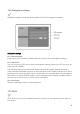

Table Of Contents
- Welcome to the Q Experience 2.0.
- Important information
- Introduction
- 1 Sidebar
- 2 View
- 3 Application
- 4 Home menu
- 5 Map
- 5.1 Map basics
- 5.2 Location properties
- 5.3 Navigation/ Set a destination
- 5.4 Map’s application menu
- Widgets
- 5.5 Chart settings
- Chart orientation
- Heading line
- Show trail
- Autocenter
- Autozoom speed limit
- Low speed zoom level
- Easy view™
- SonarChart™
- 2D shading
- Community edits
- Chart details
- Satellite overlay
- Satellite overlay opacity
- Default zoom level
- Safe water depth
- Shallow water depth
- Spot soundings
- Depth contours
- Minimum fishing range
- Maximum fishing range
- Reset chart settings
- 5.6 Location and route properties
- 6 Dashboard application
- 7 Compact dashboard widget
- 8 Fishfinder
- 9 Radar
- 10 Music
- 11 Weather
- 12 Info
- 13 Settings
- 14 Q Mobile App
- 15 Glossary

39
13.4 Navigation settings
Navigation settings include everything related to GPS and navigation information.
Navigation settings
13.4.1 GPS information
Inspect your GPS information, satellite SNR and position info from Navigation settings.
13.4.2 GPS source
You can choose your GPS source from the Navigation settings. Select your GPS source to be
either Internal or NMEA.
The Q Display features an internal GPS antenna, that will be used by default. However, in
some cases the dashboard enclosure or other devices around Q Display may prove too much
interference for receiving a good signal. In these cases, it is recommended to use an external
GPS antenna. The external GPS antenna can be attached to the Q Display via NMEA cable. In
this case you should choose your GPS source to be NMEA.
13.4.3 Trail length
Adjust the trail length shown in Chart application.
13.5 Wi-Fi
Wi-Fi allows you to join into available networks or share your own network to other devices
via Hotspot.