
User's Guide
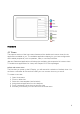



Table Of Contents
- Welcome to the Q Experience 2.0.
- Important information
- Introduction
- 1 Sidebar
- 2 View
- 3 Application
- 4 Home menu
- 5 Map
- 5.1 Map basics
- 5.2 Location properties
- 5.3 Navigation/ Set a destination
- 5.4 Map’s application menu
- Widgets
- 5.5 Chart settings
- Chart orientation
- Heading line
- Show trail
- Autocenter
- Autozoom speed limit
- Low speed zoom level
- Easy view™
- SonarChart™
- 2D shading
- Community edits
- Chart details
- Satellite overlay
- Satellite overlay opacity
- Default zoom level
- Safe water depth
- Shallow water depth
- Spot soundings
- Depth contours
- Minimum fishing range
- Maximum fishing range
- Reset chart settings
- 5.6 Location and route properties
- 6 Dashboard application
- 7 Compact dashboard widget
- 8 Fishfinder
- 9 Radar
- 10 Music
- 11 Weather
- 12 Info
- 13 Settings
- 14 Q Mobile App
- 15 Glossary

16
Chart/Map app
In Map controls, top right corner of the application you will find:
• Map menu button
• (+) Increase zoom button
• (-) Decrease zoom button
• Center map button
5.1 Map basics
5.1.1 Panning
Pan the Map by dragging it in the desired direction with your finger.
5.1.2 Centering
Center the view back to your position by pressing the button in Map controls.
5.1.3 Zooming
Zoom in by spreading two fingertips on the screen, pinch to zoom out. Alternatively use the
buttons in Map controls.