
User's Manual





Manage Your Network
125
Nighthawk AC1900 Smart WiFi Router Model R7000
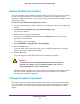
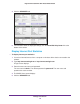
6. In the Internet Port pane, click the Show Statistics button.
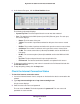
The following information displays:
• System Up Time
. The time elapsed since the router was last restarted.
• Port. The statistics for the WAN (Internet) and LAN (Ethernet) ports. For each port,
the screen displays:
-
Status. The link status of the port.
-
TxPkts. The number of packets transmitted on this port since reset or manual
clear
.
- RxPkts. The number of packets received on this port since reset or manual clear
.
- Collisions. The number of collisions on this port since reset or manual clear
.
- Tx B/s. The current transmission (outbound) bandwidth used on the W
AN and
LAN ports.
- Rx B/s. The current reception (inbound) bandwidth used on the W
AN and LAN
ports.
- Up Time.
The time elapsed since this port acquired the link.
- Poll Interval. The interval at which the statistics are updated in this screen.
7. To change the polling frequency, enter a time in seconds in the Poll Interval field and click
the Set Interval
button.
8. To stop the polling entirely, click the Stop button.
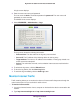
Check the Internet Connection Status
To check the Internet connection status:
1. Launch an Internet browser from a computer or wireless device that is connected to the
network.
2. T
ype http://www
.routerlogin.net or http://www.routerlogin.com.
A login screen displays.
3. Enter the router user name and password.
The user name is admin.
The default password is
password. The user name and
password are case-sensitive.