
- NetComm Modem Router User Guide

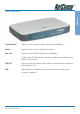

Table Of Contents
- Contents
- Overview
- NB5 Package Contents Note
- Minimum System Requirements
- Front Indicators
- Back Panel
- Resetting Factory Defaults
- Do I need a Micro filter?
- Default Settings
- Quick Start Guide
- Connecting your NB5 ADSL Modem via ETHERNET
- Connecting your NB5 ADSL Modem via USB
- Setting up your ADSL Router
- Log into your ADSL Router
- Quick Start Menu
- Connecting your ADSL Router
- Step 1: Connecting the ADSL Router to Your Computer/Notebook
- Step 1.1 Connecting to the Ethernet/USB
- Step 1.2 Connecting to the ADSL Line
- Step 1.3 Connecting to the Power Outlet
- Step 1.4 Powering On
- Step 2: Configuring Your Ethernet Network Card / Installing Your USB Device
- 2.1 Configuring Your Ethernet Network Card
- 2.2 Installing the USB Device Driver
- Step 3: Configuring Your Internet Browser
- Step 4: Connecting to the Internet
- Firewall Configuration
- Introduction to Firewalls
- Network Address Translation and Port Mapping
- Dedicated Firewalls
- Advanced Configuration of your ADSL Router
- Log into your ADSL Router
- Advanced Configuration of your ADSL Router-Login Settings
- Advanced Menus
- Introduction to Setup and Advanced Menus
- Configuring the ADSL Connection
- The Setup Menu
- WAN Setup
- PPPoE Connection
- PPPoA Connection Setup
- DHCP Connection Setup
- Static Connection Setup
- Bridged Connection Setup
- CLIP [Classical IP over ATM] Connection Setup
- LAN Setup
- DHCP Configuration
- Management IP
- The Advanced Menu
- UPnP
- SNMP
- IP QoS
- LAN Clients
- MAC Filter Control
- Enable/Disable MAC Filtering
- Create MAC Filter Rules
- Edit or Delete MAC Filter Rules
- Hidden MAC Filter Rules
- Multicasting
- Static Routing
- Dynamic Routing
- Port Forwarding
- Access Control
- IP Filters
- DMZ Configuration
- Tools Menu
- System Commands
- User Management
- Update Firmware
- Ping Test
- Modem Test
- Reboot
- Log Out
- Status Menu
- Network Statistics
- Connection Status
- DHCP Clients
- Modem Status
- Product Information
- System Log
- Appendix A: Troubleshooting
- The ADSL Router is not functional
- I can't connect to the ADSL Router.
- The DSL Link LED continues to blink but does not go solid
- The DSL Link LED is always off
- Appendix B: ADSL Router terms
- What is a firewall?
- What is NAT?
- What is a DMZ?
- What is a Gateway?
- Appendix C: Features
- ADSL/ATM Support
- Encapsulation Support
- Network Support
- Management Support
- Security Support
- External Connectors:
- Appendix D: Cable Connections
- RJ-45 Network Ports
- Twisted pair cables
- Straight and crossover cable configuration
- RJ11 connector and cable
- 605 to RJ-11 adapter
- USB cable
- 9 Pin (RS-232 ) Serial Cable
- Appendix E: Registering your NetComm Product
- Contact Information
- Legal & Regulatory Information
- Product Warranty

NetComm NB5 Ethernet/USB Modem Router YML717 Rev1
2 www.netcomm.com.au
Legal & Regulatory InformationLegal & Regulatory Information
Legal & Regulatory InformationLegal & Regulatory Information
Legal & Regulatory Information
This manual is copyright. Apart from any fair dealing for the purposes of private study, research, criticism or review, as
permitted under the Copyright Act, no part may be reproduced, stored in a retrieval system or transmitted in any form, by
any means, be it electronic, mechanical, recording or otherwise, without the prior written permission of NetComm
Limited. NetComm Limited accepts no liability or responsibility, for consequences arising from the use of this product.
NetComm Limited reserves the right to change the specifications and operating details of this product without notice.
NetComm is a registered trademark of NetComm Limited.
All other trademarks are acknowledged the property of their respective owners.
Customer InformationCustomer Information
Customer InformationCustomer Information
Customer Information
ACA (Australian Communications Authority) requires you to be aware of the following information and warnings:
(1) This unit shall be connected to the Telecommunication Network through a line cord which neets the requirements of
the ACA TS008 Standard.
(2) This equipment has been tested and found to comply with the Standards for C-Tick and or A-Tick as set by the ACA.
These standards are designed to provide reasonable protection against harmful interference in a residential
installation. This equipment generates, uses, and can radiate radio noise and, if not installed and used in
accordance with the instructions detailed within this manual, may cause interference to radio communications.
However, there is no guarantee that interference will not occur with the installation of this product in your home or
office. If this equipment does cause some degree of interference to radio or television reception, which can be
determined by turning the equipment off and on, we encourage the user to try to correct the interference by one or
more of the following measures:
• Change the direction or relocate the receiving antenna.
• Increase the separation between this equipment and the receiver.
• Connect the equipment to an alternate power outlet on a different power circuit from that to which the receiver/
TV is connected.
• Consult an experienced radio/TV technician for help.
(3) The power supply that is provided with this unit is only intented for use with this product. Do not use this power
supply with any other product or do not use any other power supply that is not approved for use with this product by
NetComm. Failure to do so may cause damage to this product, fire or result in personal injury.