
- NetComm Modem Router User Guide

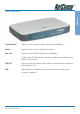

Table Of Contents
- Contents
- Overview
- NB5 Package Contents Note
- Minimum System Requirements
- Front Indicators
- Back Panel
- Resetting Factory Defaults
- Do I need a Micro filter?
- Default Settings
- Quick Start Guide
- Connecting your NB5 ADSL Modem via ETHERNET
- Connecting your NB5 ADSL Modem via USB
- Setting up your ADSL Router
- Log into your ADSL Router
- Quick Start Menu
- Connecting your ADSL Router
- Step 1: Connecting the ADSL Router to Your Computer/Notebook
- Step 1.1 Connecting to the Ethernet/USB
- Step 1.2 Connecting to the ADSL Line
- Step 1.3 Connecting to the Power Outlet
- Step 1.4 Powering On
- Step 2: Configuring Your Ethernet Network Card / Installing Your USB Device
- 2.1 Configuring Your Ethernet Network Card
- 2.2 Installing the USB Device Driver
- Step 3: Configuring Your Internet Browser
- Step 4: Connecting to the Internet
- Firewall Configuration
- Introduction to Firewalls
- Network Address Translation and Port Mapping
- Dedicated Firewalls
- Advanced Configuration of your ADSL Router
- Log into your ADSL Router
- Advanced Configuration of your ADSL Router-Login Settings
- Advanced Menus
- Introduction to Setup and Advanced Menus
- Configuring the ADSL Connection
- The Setup Menu
- WAN Setup
- PPPoE Connection
- PPPoA Connection Setup
- DHCP Connection Setup
- Static Connection Setup
- Bridged Connection Setup
- CLIP [Classical IP over ATM] Connection Setup
- LAN Setup
- DHCP Configuration
- Management IP
- The Advanced Menu
- UPnP
- SNMP
- IP QoS
- LAN Clients
- MAC Filter Control
- Enable/Disable MAC Filtering
- Create MAC Filter Rules
- Edit or Delete MAC Filter Rules
- Hidden MAC Filter Rules
- Multicasting
- Static Routing
- Dynamic Routing
- Port Forwarding
- Access Control
- IP Filters
- DMZ Configuration
- Tools Menu
- System Commands
- User Management
- Update Firmware
- Ping Test
- Modem Test
- Reboot
- Log Out
- Status Menu
- Network Statistics
- Connection Status
- DHCP Clients
- Modem Status
- Product Information
- System Log
- Appendix A: Troubleshooting
- The ADSL Router is not functional
- I can't connect to the ADSL Router.
- The DSL Link LED continues to blink but does not go solid
- The DSL Link LED is always off
- Appendix B: ADSL Router terms
- What is a firewall?
- What is NAT?
- What is a DMZ?
- What is a Gateway?
- Appendix C: Features
- ADSL/ATM Support
- Encapsulation Support
- Network Support
- Management Support
- Security Support
- External Connectors:
- Appendix D: Cable Connections
- RJ-45 Network Ports
- Twisted pair cables
- Straight and crossover cable configuration
- RJ11 connector and cable
- 605 to RJ-11 adapter
- USB cable
- 9 Pin (RS-232 ) Serial Cable
- Appendix E: Registering your NetComm Product
- Contact Information
- Legal & Regulatory Information
- Product Warranty
Overview
NetComm NB5 Ethernet/USB Modem Router YML717 Rev1
10 www.netcomm.com.au
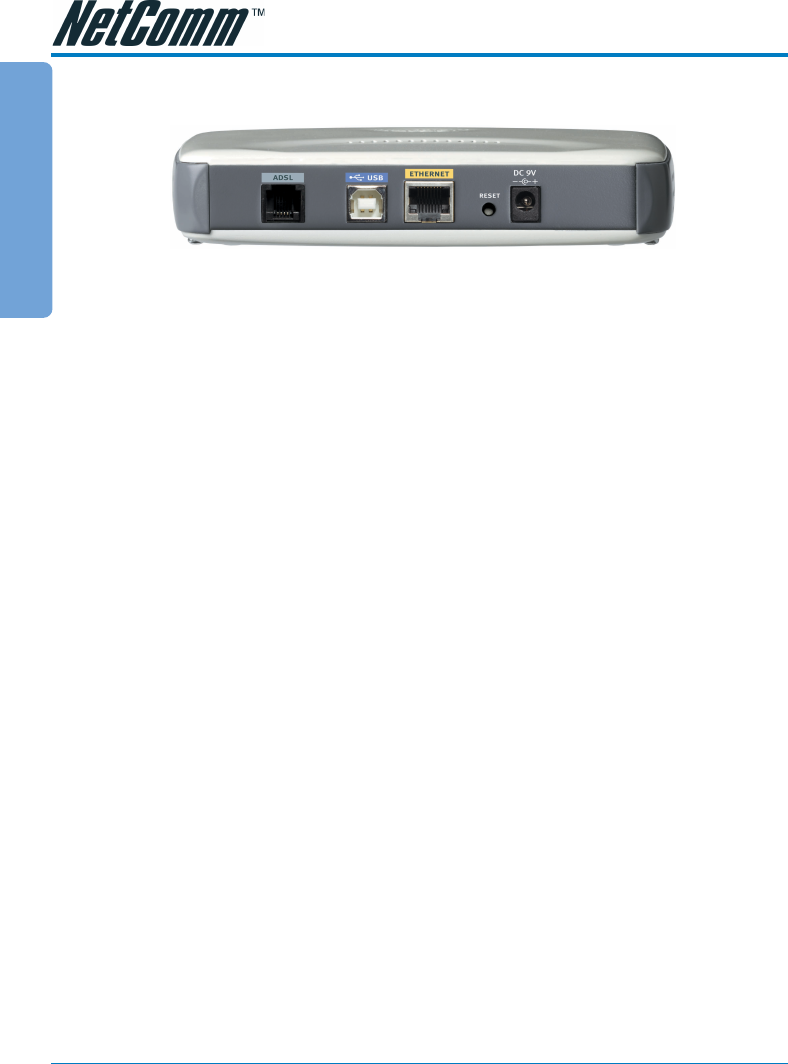
Back Panel
ADSL Telephone jack (RJ-11) to connect to your Telephone Wall Socket (ADSL
line).
USB USB port to connect to the USB port on your computer/notebook.
ETHERNET 10/100 Base-T Ethernet jack (RJ-45) to connect to your Ethernet Network
card or Ethernet Hub / Switch.
RESET To reset your ADSL Router to factory default settings. (All customised
settings that you have saved will be lost!)
Please refer to the section below on how to use the reset function.
DC Connect the Power Adapter that comes with your package.
Resetting Factory Defaults
The restore to factory defaults feature will set the ADSL Router to its factory default configuration
by resetting the ADSL Router. You may need to place the ADSL Router into its factory defaults; if
the configuration has changed, you lose the ability to configure the ADSL Router via the web
interface, or following a software upgrade. To reset the ADSL Router:
■ Ensure that your ADSL Router is powered on (for at least 10 seconds).
■ Use a paper clip or a pencil tip to depress the reset button for five seconds and release. At
this point, the reset is in progress. Do not power off the unit at this point.
■ When indicator lights return to steady green, reset is complete. The default settings are now
restored.