
Operation Manual




72Chapter 17 . Settings
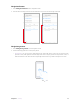
• Use pattern/PIN/password as app lock method
1. Tap App lock.
2. Choose an app lock method(pattern/PIN/password) and follow the onscreen instructions to complete
the configuration.
3. In the UNENCRYPTED APPS list, turn on the switches next to the apps that you want to encrypt.
4. Tap Back button to verify the settings.
• Use fingerprint as app lock method
1. To use fingerprint as app lock method, you need to add fingerprint and enable fingerprint verification
first. See Access App lock with fingerprint.
2. Tap App lock, place your fingerprint on the sensor to enter App lock.
3. In the UNENCRYPTED APPS list, turn on the switches next to the apps that you want to encrypt.
4. Tap Back button to verify the settings.
Change App lock password
1. Tap App lock, and then use the app lock method(either pattern, PIN, password or fingerprint) to unlock.
2. Tap
-> Change password.
3. Choose another app lock method and follow the onscreen instructions to change the password.
Set up SIM card lock
Enable SIM card lock to prevent others from using your SIM card. You will need to enter your SIM card PIN each
time you turn on your phone or insert your SIM card into another phone.
1. Contact your local carrier to get the default SIM PIN for your SIM card.
2. Tap SIM card lock, and select a SIM card.
3. Tap Lock SIM card, enter the SIM PIN and tap OK.
Change SIM PIN
1. To change a SIM PIN, you need to set up a SIM card lock first. See Set up SIM card lock.
2. Tap SIM card lock, and select a SIM card.
3. Tap Change SIM PIN, enter the old SIM PIN and tap OK.
4. Enter a new SIM PIN twice, and tap OK.
Note:
When you change you SIM PIN for the first time, contact your local carrier for the default SIM PIN (old SIM PIN).
Remove SIM card lock
1. Tap SIM card lock, and select a SIM card.
2. Switch off Lock SIM card, enter the SIM PIN you have set before, and then tap OK.
More security settings
Tap More ecurity settings and you can configure more security settings such as device administration,
security status, credential storage and so on.
17. 13 System navigation
Go to Settings -> System navigation, and then you can choose one of the following navigation modes as
desired: