
Operation Manual




70Chapter 17 . Settings
• Notifications indicator: Turn on the switch and the notification indicator will blink green when receiving
notifications.
• Default notification sound: Tap Default notification sound to select a desired sound for notificaitons.
17. 9 Apps
1. Go to Settings -> Apps, and view the apps in your phone.
• View installed apps: Tap Installed to view the apps you have installed.
• View all apps: Tap All or swipe the screen left to view all the apps in your phone.
2. Tap an app and you can configure the following options:
• Disable apps: Tap DISABLE button to disable an app (Some pre-installed apps cannot be disabled).
• Force stop apps: Tap FORCE STOP button to force stop an app.
• Uninstall apps: For an installed app, you can tap UNINSTALL button to uninstall the app.
• Notifications: Configure the notification settings for the application. For details, see Notifications.
• Permissions: Configure permissions for the application.
• Storage: Clear data, clear cache and view the status about the used space of your phone.
• Data usage: View the data usage of the app, allow app to use the mobile data network, enable usage of
mobile data in the background, and allow unrestricted data access when Data Saver is on.
• Battery: View and adjust the power use details.
• Open by default: Configure the settings for opening supported links in the app.
3. Tap
-> Default apps to configure more settings for default app, including assist apps, opening links in
apps and so on. Tap -> Reset app preferences -> RESET APPS to reset all preferences for disabled apps,
disabled app notifications, default applications for actions, background data restrictions for apps and any
permission restrictions.
17. 10 Permissions
Your phone comes with a permission manager that you can use to restrict app permissions and protect your
personal data.
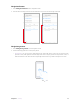
Configure permissions for apps
Go to Settings -> Permissions, and you can select either Apps or Permissions to configure the following
options:
• Apps: Select an app and you can enable or disable the relevant permissions for the app. To learn more
about all the permissions, tap
-> All permissions.
• Permissions: Select a permission and you can authorize certain apps.
Manage auto start for apps
Manage auto start of apps and controls uncessary mutual wakening between associated apps from the bottom
level, as well as auto start and background start.
1. Go to Settings -> Permissions ->
-> Startup manager.
2. Turn on or turn off the switches next to the apps to allow or restrict the apps to run automatically.
Special app access
1. Go to Settings -> Permissions -> -> Special app access.
2. Select a permission type and configure the access for the apps as desired.