
Operation Manual




69Chapter 17 . Settings
• Swipe down from the status bar to open the Quick Settings Panel, and check Auto to optimize the
brightness level for available light.
Change wallpapers
You can change or customize wallpapers, see Change the wallpaper.
Enable LED indicator
• Notifications indicator: Tap LED indicator and switch on Notifications indicator, and then the LED
indicator will blink green when you receive notifications.
• Charging indicator: Tap LED indicator and switch on Charging indicator, and then the LED indicator will
light in yellow when your phone is offscreen charging, and it turns to green when the charging is complete.
Enable Eye protection mode
You can enable Eye protection mode to decrease the blue light of the screen so as to reduce harm to the retina.
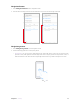
1. Tap Eye protection mode and switch on Eye protection mode.
2. Drag the slider to adjust the color temperature for a cooler or warmer screen color.
3. Make a schedule by switching on Scheduled and setting the specific time.
Adjust font size
Tap Font size, and then tap or drag the slider to set a desired font size (small/medium/large/extra large/huge).
Automatically lock screen
Tap Automatically lock and select a time to make the phone lock automatically after a certain time of inacticity.
Auto-rotate screen
You have following two ways to adjust the screen rotation:
• Switch on Auto-rotate screen, and your screen’s orientation will switch automatically depending on how
you hold your phone when performing certain operations, such as browsing a web page or viewing a
picture.
• Slide down from the status bar to open the Quick Settings Panel, and tap
.
17. 8 Notifications
1. Go to Settings -> Notifications.
2. Select an app to personalize its notification mode based on your needs. You can configure the following
options:
• Allow notifications: Turn on the switch to enable all notifications for the application.
• Notification dots: Turn on the switch, and then a notification dot will appear in the upper right corner of
an app when receiving new notifications.
• Notificaiton categories: For some apps, multiple notifications types display in the CATEGORIES list, you
can select one and switch on Notification dots to enable it for this notification category.
3. Tap
-> Advanced, and then you can configure the following options:
• Notificaitons on the Lock screen: Tap On the lock screen and you can choose Show all notification
content, hide sensitive notification content or Don’t show notifications at all for applications in
your phone.
• Notification dots: Turn on the switch to enable notification dots that displayed in the upper right corner
of the app icon when receiving notifications.