
Operation Manual




68Chapter 17 . Settings
Printing
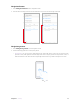
Make sure your printer and phone connect to the same LAN network. Then tap Printing and your printer will
display on the screen, and then follow the onscreen instructions to use it.
17. 6 Sounds, vibration and Do not disturb
Go to Settings -> Sounds, vibration & Do not disturb to configure the volume, ringtones, and vibrations
for your phone.
Sounds and vibration
• Volume: Tap Volume and drag the slider to adjust the volume for ring, media and alarm.
• Vibrate on ring: Turn on the switch to vibrate on ring.
• Vibrate on silent: Turn on the switch to vibrate on silent.
• SIM 1 ringtone: Select a default ringtone for SIM 1, or you can tap Custom -> Add ringtone to add a new
one.
• SIM 2 ringtone: Select a default ringtone for SIM 2, or you can tap Custom -> Add ringtone to add a new
one.
• Default notification sound: Select a default notification ringtone.
• Dial pad touch tones: Turn on the switch to ring on dial pad.
• Lock sounds: Turn on the switch to play a sound when locking the screen.
• Touch sounds: Turn on the switch to ring on touch.
• Vibrate on tap: Turn on the switch to vibrate on tap.
Do not disturb
When Do not disturb is enabled, will appear in the status bar. Calls and alerts will be silenced except the
items you set as priority.
Tap Do not disturb, and you can configure the following settings:
• Manually enable Do not disturb: Switch on Manual to enable Do not disturb immediately. You can also
swipe down from the status bar to open the Quick Settings Panel, and then tap
Do not disturb.
• Scheduledly enable Do not disturb: Switch on Scheduled and set the start time, end time and repeat for
Do not disturb.
• Set exceptions for Do not disturb: Tap Exceptions and you can choose the following modes:
• Priority only: You can set priority only allows alarms, reminders, events, calls and messages. Tap Priority
only allows to configure the settings as desired.
• Alarms only: Only allow alarm to send notifications when enabling Do not disturb.
• Total silence: Disable all notifications.
17. 7 Display
Configure the display settings to personalize your phone. Go to Settings -> Display, you can configure the
brightness level, wallpaper, LED indicator, Eye protection mode, font size, screen off time, and screen rotation.
Enable adaptive brightness
You have following two ways to enable adaptive brightness:
• Switch on Adaptive brightness and your phone will automatically adjust the screen brightness according
to the ambient brightness.