
Operation Manual




29Chapter 4 . Calls and Contacts
1. On the message list, tap a conversation, and tap -> Add to Contacts -> OK.
2. Choose a contact to add the number or tap Create new contact.
3. Select the storage location you want to store the contact to.
4. Enter the contact’s information.
5. Tap SAVE.
• Add a contact in Phone
• On the call list, tap a number and tap Create new contact, enter the contact’s information and tap
SAVE.
• On the call list, tap a number, then tap Add to a contact and choose a contact to add a number.
• Tap -> Create new contact, enter the contact’s information and tap SAVE.
• Tap , enter the number and tap Create new contact/Add to a contact. Enter the contact’s
information and tap SAVE.
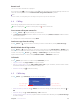
Manage a contact
On the Home screen, go to Tools -> Contacts, or go to Phone -> . Tap a contact to edit it.
Add to favorites
Edit
Send a messageMake a call
Contact name
Recent call list of the cantac
t
More: Link/Delete/Share/Create
shortcut on Home screen/Set
ringtone/Route to voicemail
Note:
Only phone contacts can be placed on Home screen or added to favorites.
Search Contacts
On the contacts list, you can use the following search methods:
• On the Home screen, go to Tools -> Contacts. Tap and enter the name, initials, or number of a
contact in the dialer contact.
• On the Home screen, tap Phone. Tap the search bar and enter the name, initials, or number of a contact.
Create contact label
1. On the Home screen, go to Tools -> Contacts -> -> Create label.
2. Choose an account.
3. Enter the label in the Label name box.
4. Tap OK to save the label.
5. Tap ADD CONTACTS or to add contacts in the label.
6. Tap , you can send email, send message, remove contacts, rename label and delete label.