
Operation Manual





68Chapter 17 .
Settings
17. 8 Display
Configure the display settings to personalize your phone. For example, you can change the wallpaper, font
size, and screen-off time. On the Home screen, tap Settings -> Display, You can configure the following
settings:
• Adaptive brightness: Switch on Adaptive brightness and your phone will automatically adjust the screen
brightness according to the ambient brightness. Drag the slider under Adaptive brightness to adjust the
brightness. The screen brightness will stay constant regardless of the ambient brightness if you disable
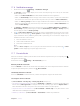
automatic screen brightness. To adjust the screen brightness, you can also swipe down from the status bar:
Check to enable automatic screen brightness
Drag slider to adjust brightness manually
• Wallpaper: Tap Wallpaper -> Select new wallpaper, choose the desired wallpaper and follow the onscreen
instructions to set it as the Home screen or Lock screen wallpaper (or both). For another two ways to set
wallpaper, you can either go to Themes -> -> Wallpapers to set wallpaper, see Change the
wallpaper; or touch and hold the a blank area on the Home screen to access the Home screen editor, then
tap Wallpapers at the lower right corner to set wallpaper, see Set the Home screen wallpaper.
• LED indicator: If Notification indicator is enabled, the LED indicator will blink green when you receive
notifications. If Charging indicator is enabled, the LED indicator will light in yellow when your phone is off-
screen charging, and it turns to green when the charging is complete; once you unlock the screen, the LED
indicator will be off.
• Eye protection mode: Turn on the switch to decrease the blue light of the screen to reduce harm to the
retina. You can make a schedule by turning Scheduled on and set the specific time. You can drag the slider
to adjust the color temperature for a cooler or warmer screen color.
• Font size: Tap to set the font size.
• Automatically lock: Make the phone lock automatically after a certain time of inacticity.
• Auto-rotate screen: If this option is enabled, your screen’s orientation will switch automatically depending
on how you hold your phone when performing certain operations, such as browsing a web page or viewing
a picture.
17. 9 Apps
On the Home screen, tap Settings -> Apps to enter Apps screen, you can:
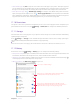
• View installed apps: Tap Installed to view the apps you installed. Then tap an app and you can uninstall it (To
install an app, you can also touch and hold the app on Home screen, then move it to Uninstall in the status
bar); force it stop (This function only works when the app is run in background); view storage, data usage
information and configure other more funtions.