
Operation Manual





67Chapter 17 .
Settings
17. 6 Notification manager
1. On the Home screen, tap Settings -> Notification manager.
2. Tap All apps to make all apps display on the screen. Then tap the app icons one by one enter their
detailed setting screen:
• Switch on/off Allow notifications to enable/disable notifications for the application.
• Switch on Show silently and then the app will not make sound, vibrate, or peek these notifications
into view on the current screen. (This function only works when you switch on Allow notifications.)
• Switch on Treat as priority and then the app’s notification will continue to interrupt when Do not
disturb is set to Priority Only. (This function only works when you switch on Allow notifications and
switch off Show silently.)
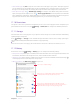
3. Tap All apps -> Blocked to quickly view the apps you switch off Allow notifications; tap All apps ->
Shown silently to quickly view the apps you switch on Show silently; tap All apps -> Priority to quickly
view the apps you switch on Treat as priority:
4. Tap -> Lock screen notification and toggle the switch to enable/disable turning on the screen when
notifications are received; tap -> Show system to enable displaying your system apps on the screen.
If you enabled the device protection (pattern, PIN or password), you can choose the display way of
notification when the screen is locked:
1 ) Show all notification content.
2 ) Hide sensitive notification content.
3 ) Don’t show notifications at all.
Note:
If you choose None or Swipe for screen lock, your phone will show all notification content by default.; tap -> Show
system to enable displaying your system apps on the screen.
17. 7 Do not disturb
When Do not disturb is enabled, calls and alerts will be silenced except the items you set sa priority, and
will appear in the status bar.
On the Home screen, tap Settings -> Do not disturb, you can:
Manually enable Do not disturb
Switch on Manual to enable Do not disturb mode immediately. You can also swipe down from the status bar
to open the Quick Settings Panel, and then tap Do not disturb.
Scheduledly enable Do not disturb
Switch on Scheduled and set the start time, end time and repeat for using Do not disturb mode.
Set exceptions for Do not disturb
Tap Do not disturb -> Priority only -> Priority only allows and you can:
• Set priority for Reminders and Events: Switch on Reminders and Events to set priority for Reminders and
Events. Then tap Messages/Calls to configure who can call or message you; switch on Repeat callers to
allow notifications when the same person calls a second time within a 15-minute period.
• Only allow alarm to send notifications: Tap Do not disturb -> Alarms only to only allow alarm to send
notifications when enabling Do not disturb.
• Disable any notifications: Tap Do not disturb -> Total silence to disable any notifications.