
Operation Manual




42Chapter 8 .
Themes
Themes
Themes help you to personalize your Home screen by changing the theme, wallpaper, app
icons, and sound.
• Change the theme
• Change the wallpaper
• Change the icons
• Change the sounds
8. 1 Change the theme
1. On the Home screen, tap Themes.
2. Tap -> Theme packs.
3. Select a theme, then tap APPLY to change the theme.
8. 2 Change the wallpaper
Wallpaper settings let you set an image or photo as wallpaper for the Lock screen or Home screen. You can
choose from dynamic and still images.
Launch the wallpaper
There are three ways to Launch the wallpaper.
• Tap Themes -> -> Wallpapers.
• Tap Settings -> Display -> Wallpapers -> Select new wallpaper.
• Touch and hold the Home screen’s blank area, then tap .
Change the wallpaper with system-provided wallpapers
1. On the Home screen, tap Themes.
2. Tap -> Wallpapers.
3. Select a desired wallpaper from system-provided wallpapers.
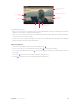
4. Tap screen to open a Homescreen Preview which shows a preview of the currently selected wallpaper
without applying it. You can swipe right or left to change the wallpaper.
5. Tap APPLY, and then follow the onscreen instructions to set it as the homescreen or lockscreen wallpaper
(or both).
Customize your Wallpaper
1. On the Home screen, tap Themes.
2. Tap -> Wallpapers.
3. Tap to select an image.
4. Tap screen to open a Homescreen Preview which shows a preview of the currently selected wallpaper
without applying it.
8