
Operation Manual




40Chapter 7 .
Camera and Photos
7. 6 Photos
View photos and videos
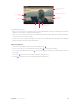
You can view the following photos and videos in Photos.
• Photos and videos shot with the camera.
• Photos and videos that your friends shared with you.
• Photos and videos synced from your computer.
• Photos and videos saved from messages, emails, or websites.
• Photos saved from screenshots.
Manage photos and videos
Go to Photos, touch and hold a photo or album to open the file selection interface, and then select the files
that you want to manage.
• Share: Tap
, choose a sharing method and follow the onscreen instructions to share your files.
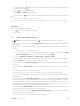
• Move to trash: Tap -> Move to trash to move the photo to trash. You can tap Photos -> -> Trash
to view it. Items in the trash are deleted after 60 days, you can tap Photos -> -> Trash ->
-> Empty
trash to empty the trash.
• Delete form device: Tap -> Delete from device to delete the photo.
Tap to select a photo or a video and you can:
• Edit: Tap to edit the photos or videos. (The feature is only available for photos in JPG/JPEG, BMP or PNG
format.) For more information, see Edit an image.
• Details: Tap to view the photo information.
• Slideshow: Tap -> Sildeshow to view the photos as slideshow. Tap the screen to stop the slideshow.
• Use as: Tap -> Use as. You can use the selected picture as wallpaper or contact photo.
• Print: Tap -> Print. Configure the settings and then print out the photo.
• Delete form device: Tap -> Delete from device to delete the photo.
Go to Photos -> -> Trash and you can:
• Restore the trash:
• Touch and hold a photos or video, then check the photos and videos you want to restore and tap
.
• Select a photo or video, go to -> Restore.
• Permanently delete:
• Touch and hold a photos or video, then check the photos and videos you want to permanently delete
and tap -> DELETE.
• Select a photo or video, go to -> Permanently delete.
Edit an image
You can use the image editing tools to bring your photos to life.
Select an image you want to edit and tap .
• Tap and select a filter to add a filter.
• Tap and you can adjust image parameters to make your image look more vivid.
• Tap and you can:
• Crop an image: Drag the dotted edges to crop the image to the desired size. Tap to choose a
proportion.
• Straighten an image: Slide the scaleplate to make a slight adjustment to the angle of the photo and crop
the excess part of the photo to maintain the original aspect ratio.