
Operation Manual




35Chapter 6 .
Music and video
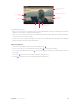
Playback slider
Tap to play the previous video Tap to play the next video
Tap to pause the video
T
ap to lock playback
orientation
Tap to show/hide contr
ols
Double-tap to
pause/play
Tap to rotate playback
orientation
During playback, you can:
• Adjust the screen brightness: Swipe up or down on the left-hand side of the screen. Swipe up to increase the
brightness, or swipe down to decrease the brightness.
• Adjust the volume: Swipe up or down on the right-hand side of the screen. Swipe up to increase the volume
or swipe down to decrease the volume.
• Rewind or fast-forward: Swipe left or right on the screen to accurately adjust the video progress bar. Drag the
progress bar left to rewind or right to fast-forward.
Video management
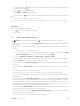
• Delete: Touch and hold the video you want to delete and tap .
• View the video details: Touch and hold the video and tap to view the video details.
• Share: Touch and hold the video and tap
, select how you want to share the video and follow the onscreen
instructions.
• Search: Tap and enter the key words to search the video you want.
• Sort: Tap to sort the videos by name/date added/recently played.