
user manual





EliteMail VMS/EliteMail Limited Issue 3
Console Maintenance 2 - 5
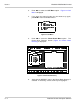
7. Press again to select the Change option. The Phone
Book Entry Screen (Figure 2-4 Default Phone Book Entry) is
displayed. The NAME field on this screen should read
DEFAULT. If this screen does not appear, press until
you return to the Main Menu, and try again from step 3.
Figure 2-4 Default Phone Book Entry
8. Press . This moves the cursor from the NAME field
to highlight the COM Ports section at the bottom of the
screen.
9. Look at the PORT field. The number should be the same as
the COM port you specified during the installation procedure
(
e.g.
, 2 for COM2).
10. If the port number is incorrect, press repeatedly to show
the correct number.
11. Look at the BAUD field immediately below the PORT field.
The number in this field should be 2400 for remote
connection or 19,200 for direct connection.
12. If you want to change the baud rate, press repeatedly until
you display the baud rate you want.
13. Look at the MODEM field to the right of the BAUD field, and
press to see a list of supported modems.
↑ ↓ ← →