
user manual




EliteMail VMS/EliteMail Limited Issue 3
Reference 16 - 15
Copy the Report to a File
1. Run the report. The system displays the Output Menu.
2. Press to highlight Copy, and press .
3. Select a filename for the report.
By default, the system displays the filename that appears at the top of the
Output Menu. To accept the default filename and copy the new report file
to the directory containing the system files, press .
Copy the report to a floppy disk
1. Insert the disk in drive A
2. Enter
A:<
filename
>,
and press , where
<filename>
is the
name of the file.
After you copy the report file to a floppy disk, you can use it on another
computer with most spreadsheet, database or word processing programs.
If you copy more than one report to a floppy disk, give each report a
different filename.
The Previous Report Option
The system stores the contents of the reports you run in disk files, located
in the directory containing the voice mail system software. You can view,
copy, or print a report at a later time by requesting the report filename.
1. At the Reports Menu, Press to highlight Previous Report, and
press .
2. When prompted for a filename, enter the name of the report file, and
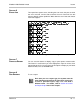
press . Refer to Figure 16-16 Filenames for Reports.
Each time you run a report type, the system uses the
same filename and replaces the last report of that type.
To save a particular report, copy it to a file with a
different name.