
User`s guide


3-22 ManaGeMient inforMation
Mail History
Checks the history of sent and received e-mail.
1
Start OfficeBridge and log in. (see page 2-11)
2
Click the “Options” tab.
3
Click [Mail History].
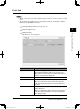
The “Mail History” list will appear and the e-mail history can be checked.
Items Descriptions
Page Switches the page of the e-mail history displayed.
The underlined numbers indicate pages that can be
displayed; the number that is not underlined indicates
the page currently being displayed.
Display Sets the number of communications displayed (10, 20,
or all).
Mail Transmission
History
Select either “Mail Transmission History” or “Mail
Reception History” as the mail history to be displayed.
Address/Sender The destination of the e-mail transmission will be
displayed.
When you click the list button and select [Address/
Sender], the displayed history will be narrowed down by
the address/sender.
Format The e-mail attachment file format will be displayed.
Date and Time The transmission start time of the e-mail will be
displayed.
Time The e-mail transmission time will be displayed.
Pages The number of pages in the e-mail will be displayed.
User The user name will be displayed.
PC_Users_Guide.indb 22 2007/04/27 10:17:54