
User`s guide


3-19ManaGeMient inforMation
1
2
3
4
5
6
7
8
9
10
11
12
13
AI
uSinG the oPtion tooLS
Management Information
Device Settings
NOTE
You can always check the device Settings. Whether you can edit the setting, depends on the
“Admin Tools” setting. To edit the setting, see Chapter 4 “Device Settings” on page 4-13.
Checking the device information
1
Start OfficeBridge and log in. (see page 2-11)
2
Click the “Options” tab.
3
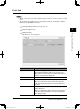
Click [Device Settings] and check the device settings.
The “Device Settings” dialog will appear.
Items Descriptions
Device Name The device name will be displayed.
Installation Location The installation location name or the department where
it is used (managed) etc. will be displayed.
System Options The installed options will be displayed.
Network Connection The current network communications speed and com-
munications method will be displayed.
Telephone Line Status The current telephone line status will be displayed.
Scanner The current scanner status will be displayed.
Printer The current printer status will be displayed.
Cassette The current cassette status will be displayed.
Options The attached optional unit names and their status will
be displayed.
4
Click [Close] to close the dialog.
PC_Users_Guide.indb 19 2007/04/27 10:17:53