
User`s guide


3-17coMMon Job SettinGS
1
2
3
4
5
6
7
8
9
10
11
12
13
AI
uSinG the oPtion tooLS
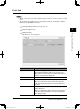
Print Job
You can cancel the print jobs displayed in the list.
NOTE
•
The “Security Print” jobs will be displayed only in the list of each user who executed
them.
• To cancel the current print job, see “Cancelling a print job” in Chapter 7, “Printer
Functions” in the MFP User’s Guide.
1
Start OfficeBridge and log in. (see page 2-11)
2
Click the “Options” tab.
3
Click [Print Job].
The “Print Job” list will appear.
Items Descriptions
Page Switches the page of the print job display.
The underlined numbers indicate pages that can be
displayed; the number that is not underlined indicates
the page currently being displayed.
Display Sets the number of print jobs displayed (10, 20, or all).
Document Name The document file name will be displayed.
When you click the list and select the document file
name, the displayed print jobs are narrowed down by
the name.
Owner The name of the computer that executed the print job
will be displayed.
When you click the list button and select the computer
name, the displayed print jobs are narrowed down by
the computer name.
PC_Users_Guide.indb 17 2007/04/27 10:17:53