
User`s guide






6-8 PrintinG errorS
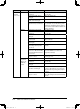
Phenomenon Device to check Check point Countermeasure
A document
created with
the specified
application
software
cannot be
printed.
PC Check if “Muratec ***” is
installed.
Otherwise, you cannot print a document
created with the specified application
software. Exit OfficeBridge and install
“Muratec ***”.
Check if “Muratec ***” is
selected.
From the print menu of the application
software, set the printer to “Muratec ***”.
A document
created with
the specified
application
software is
not printing
properly.
PC Check if the paper size or
direction you set in the
application software is given
priority.
The settings in the application software
may be given priority to the ones in the
printer driver for printing. Configure
the correct settings on the application
software.
Check if the memory
required for printing is suf-
ficient.
If trying to print multiple copies, try to
print one at a time.
Check if the memory
required for printing is suf-
ficient.
Set the image resolution lower. Simplify
the image to decrease the file size.
A document
is not print-
ing properly
PC Check if the spool settings
of the printer driver are
correct.
Change the spool data format of the
printer driver from “EMF mode” to “RAW
mode”.
Cannot select
items on
the printer
driver
PC
—
Some functions may not be combined.
Areas displayed in gray cannot be
selected.
Documents
set in a
work group
in Microsoft
Excel are
not printing
properly
PC Check if each worksheet
in Microsoft Excel has
the same settings in “Page
Settings” and printer
driver settings.
When you set some worksheets in
a workgroup in Microsoft Excel
and print them, you need the same
settings in both “Page Settings” and
“printer driver settings” for each
worksheet.
(*** indicates your machine’s model name, ex.“MFX-2050/F-565” or “MFX-1450/F-525”)
PC_Users_Guide.indb 8 2007/04/27 10:18:16