
User`s guide






6-7PrintinG errorS
1
2
3
5
6
7
8
9
10
11
12
13
AI
troubLeShootinG
Printing errors
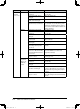
Phenomenon Device to check Check point Countermeasure
Cannot print
a document
PC Check if the LAN cable is
connected.
Check the LAN cable connection and con-
nect correctly.
Check if the LAN cable is
damaged.
Replace the LAN cable.
Check if the network card
(LAN card) is damaged.
Replace the network card.
Check to make sure that the
system memory is sufficient.
· Make sure you have the required
memory space available on your PC. If
not, please add memory.
· If multiple software applications or
unnecessary resident software are run-
ning, exit them.
Machine Check if the power is ON. Turn ON the power.
Check if paper is loaded. Load paper properly.
Check if the drum car-
tridge or toner cartridge is
installed.
Install the drum cartridge or toner car-
tridge correctly.
Check if the LAN cable is
connected.
Check the LAN cable connection and con-
nect correctly.
Check if the LAN cable is
damaged.
Replace the LAN cable.
Check if the network set-
tings are correct.
Configure the network settings correctly
(refer to page 1-5).
Network
peripheral
devices (ex.
LAN hub,
router)
Check if the power is ON. Turn ON the power.
Check if the LAN cable is
connected.
Check the LAN cable connection and con-
nect correctly.
Check if the LAN cable is
damaged.
Replace the LAN cable.
Check if the network periph-
eral device is damaged.
Connect the LAN cable to another port on
the device and make sure it operates cor-
rectly. If it fails to operate, please replace
the device.
Check if the network set-
tings are correct.
Refer to the operational manual of the
device and configure the network settings
correctly.
Setting Check that your PC infor-
mation is registered in “User
Registration” field.
(When the “User Access /
Cost Accounting” setting
for Print Mode is active,
the machine does not print
the document created by a
OfficeBridge user without
“PC Information”.)
See “User Registration” on page 3-3 and
enter the “PC Information” of the user.
To check whether the “User Access / Cost
Accounting” setting for Print Mode is
active, press <Setting>, [List], [Settings
List], [System Settings] and [Yes] to print
out the machine’s settings, and check that
“Print” underneath “User Access / Cost
Accounting” is set ON.
PC_Users_Guide.indb 7 2007/04/27 10:18:16