ISDN ProxyServer Model MTPSR1-202ST User Guide
User Guide 88301401 Revision B ProxyServer 200-Series (Model No. MTPSR1-202ST) This publication may not be reproduced, in whole or in part, without prior expressed written permission from Multi-Tech Systems, Inc. All rights reserved. Copyright © 1998, by Multi-Tech Systems, Inc. Multi-Tech Systems, Inc. makes no representations or warranties with respect to the contents hereof and specifically disclaims any implied warranties of merchantability or fitness for any particular purpose.
Contents Chapter 1 - Introduction and Description Introduction ................................................................................................................................................ 6 Preview of this Guide ................................................................................................................................. 6 Front Panel ........................................................................................................................................
Chapter 5 - Remote Configuration and Management Introduction .............................................................................................................................................. 40 Modem-Based Remote Configuration Procedure ..................................................................................... 40 LAN-Based Remote Configuration ...........................................................................................................
Chapter 1 - Introduction and Description
ProxyServer User Guide Introduction Welcome to Multi-Tech's new ISDN ProxyServer model number MTPSR1-202ST, a single, secure gateway that provides multiple LAN users with high performance Internet access. The ISDN ProxyServer functions as a TCP/IP proxyserver that resides on the outer edge of your firewall and provides Basic Rate ISDN Service using its internal 2B+D terminal adapter.
Chapter 1 - Introduction and Description Chapter 5 - Remote Configuration and Management This chapter provides procedures for changing the configuration of a remote ProxyServer. Remote configuration allows you to change the configuration of a unit by simply connecting two modems between the two ProxyServers and remotely controlling the unit. Chapter 5 also describes typical client applications (i.e., Telnet and Web-based management) used for remote configuration of the ProxyServer.
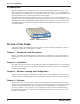
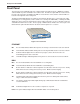
ProxyServer User Guide Front Panel The front panel of the ISDN ProxyServer contains LEDs for the Ethernet port, a WAN port, and two common LEDs for power and whether the software fails. The Ethernet port LEDs are located on the left side of the front panel, the WAN port LEDs are located in the center, and the common LEDs are located on the right side of the front panel.
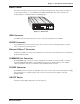
Chapter 1 - Introduction and Description Back Panel The cable connections for the ProxyServer are made at the back panel. Three groups of cables are used on the ProxyServer -- the Command Port, ISDN, and Ethernet. The cable connectors are shown in Figure 1-3 and defined in the following groups. ISDN PHONE 10BASE T COMMAND PORT ON POWER OFF Figure 1-3. Back Panel ISDN Connector The ISDN connector (an RJ11 jack) is used to connect the ProxyServer to the WAN.
ProxyServer User Guide Specifications • Four-wire Basic Rate (2B+D) ISDN S/T interface • EuroISDN (NET3), VN4, 1TR6, INS64, NI-1, AT&T 5ESS, DMS-100 switch capability • SoftBond B-Channel Protocols • ISDN interface with 64K bps per channel or 128K bps effective bandwidth when software BONDing is employed • Ethernet LAN Interface - 10Base-T (twisted pair) connector • ISDN Interface - RJ45 jack • PHONE interface - RJ11 jack • Command Port - 19.
Chapter 2 - Installation
ProxyServer User Guide Introduction This chapter is organized in the way you will unpack and cable your ProxyServer. The unpacking section describes the contents of the shipping box and shows how the ProxyServer is packaged. The installation procedure describes each cable connection and shows where that cable is connected to the ProxyServer. Unpacking The shipping box contains the ProxyServer, external power supply, a plastic bag containing cables, your Quick Start Guide, and three diskettes (i.e.
Chapter 2 - Installation Installation The installation procedure in Table 2-1 provides the cable connections for the ISDN telephone network, two types of connections for your Ethernet, a short adapter cable to connect to your PC for software loading, and finally your power connection. If additional RAM needs to be added, perform the procedures in Table 2-2. Figure 2-2 shows the ProxyServer’s external connections. Table 2-1.
ProxyServer User Guide Adding Additional RAM A second SIMM connector is provided for adding RAM to the ProxyServer. The procedure for adding RAM is provided in Table 2-2. Table 2-2. Adding Additional RAM Procedure Step Procedure 1 Ensure that the external power supply is disconnected from the ProxyServer. 2 Turn the ProxyServer upside down and remove the cabinet mounting screw at the center back of the cabinet. See Figure 2-3. Cabinet Mounting Screw (center, back) Figure 2-3.
Chapter 3 - Software Loading and Configuration
ProxyServer User Guide Introduction This chapter covers procedures for loading the ProxyServer software from a Windows PC (Win95 or Win3.1x) and configuring your ProxyServer. Configuration includes setting up the LAN and WAN port IP addresses, setting up the ISDN configuration default parameters, then downloading the default setup to the target ISDN ProxyServer.
Chapter 3 - Software Loading and Configuration Call Control Parameters ü Persistent DTR Dialing_______________________________________ A high DTR (Data Terminal Ready) signal on the Command port indicates that your computer or terminal is ready to communicate with your ProxyServer. DTR normally goes high when a communication program starts or is ready to dial.
ProxyServer User Guide Loading your Software The following loading procedure does not provide every screen or option in the process of installing the Proxy Server software. The assumption is that a technical person with a thorough knowledge of Windows and the software loading process is doing the installation. 1. Run Windows on the PC that is connected to the Command Port. 2. Insert the ProxyServer Version 2.01 Disk 1 into the disk drive on the PC connected to the Command Port. 3. Win3.
Chapter 3 - Software Loading and Configuration 6. Click on OK to continue. 7. Click on the Finish button to continue. 8. The “Do you want to download default setup?” dialog is displayed. 9. Click on Yes to download the default setup. Clicking on the No button prevents the defaults from being downloaded to the ProxyServer.
ProxyServer User Guide IP Port Configuration This dialog enables the configuration of IP parameters that are generally applicable to IP Proxying on all ports. 10. The default LAN IP address has to be changed to your unique LAN address. Change the default IP address, 192.168.0.1, to your unique LAN address. 11. If your ISP dynamically assigns the WAN port IP addresses, do nothing and proceed to the next step.
Chapter 3 - Software Loading and Configuration 18. If your ISP or Remote Access Server (RAS) uses Point-to-Point Protocol (ppp), click on the User Name field in the Authentication group and enter your user name. If SLIP protocol is used by your ISP or RAS, authentication is provided in script form. 19. If your ISP or RAS uses Point-to-Point Protocol (ppp), click on the Password field in the Authentication group and enter your password.
ProxyServer User Guide 22 MTPSR1-202ST
Chapter 4 - ProxyServer Software
ProxyServer User Guide Introduction This chapter provides an overview of the software you received with your ISDN ProxyServer and then provides a typical application and explains how to change various configuration parameters from the default settings that were set up when the ProxyServer software was originally configured and downloaded to the unit (Chapter 3).
Chapter 4 - ProxyServer Software Download Default Setup This utility enables you to download the default settings, configured during installation, to the ProxyServer. If you are installing the software for the first time, you will download this setup at the conclusion of the installation process, before operating the ProxyServer. If you have made changes to the ProxyServer configuration and now want to revert to the default setup, you can do so through the Proxy Server 2.01 program group.
ProxyServer User Guide Main Menu ProxyServer configuration updates are initiated through the Proxy Setup dialog box or “main menu.” To display the Proxy Setup dialog box in Windows 95, click on the Start | Programs | ProxyServer 2.01 | ProxyServer Configuration. You can also open the Proxy Setup dialog box by doubleclicking the Proxy.201 folder on your local drive, then double-clicking on the Roucon.exe icon. After loading, the Proxy Setup dialog box appears.
Chapter 4 - ProxyServer Software A Typical Internet Application A typical Internet application is shown in Figure 4-1 with your ProxyServer connected to the Internet through an ISP with an ISDN type connection to your ProxyServer. All the workstations, servers, and printer are connected to the HUB (LAN), and each has a unique IP address. The ISDN ProxyServer is also connected to the HUB via an unregistered IP Address (for this example, 192.168.2.8).
ProxyServer User Guide IP Setup Now consider the WAN port and whether this IP Address is going to be assigned dynamically by your ISP or you will have to enter an IP address and net mask for the WAN port. Most of the time the WAN address will be dynamically assigned by your ISP, in which case the check box for ISP Assigns Dynamic Address will be checked and the IP address and Net Mask in the WAN group will be unavailable.
Chapter 4 - ProxyServer Software WAN Port Setup The Parameter Configuration dialog box displays the network switch type and the US Parameters or the Europe Parameters, depending on the switch type selected. In the first example (below), the default US Parameters are displayed and are available for editing purposes. The uppermost text box on the dialog box is not available for editing as it is used only for adding the names of new parameter configurations.
ProxyServer User Guide US Parameters The US Parameters group includes the Data SPID, Voice SPID, the data Directory Number (DN), and the voice DN. All of these parameters are assigned by your ISDN service provider and merely need to be copied into the appropriate text boxes on the Parameter Configuration dialog box. Data SPID (Service Profile Identifier) - Enter the Data SPID that was assigned by the local phone company for the specific BRI line to which the ProxyServer is attached.
Chapter 4 - ProxyServer Software Call Control Parameters Persistent DTR Dialing - Data Terminal Ready (DTR) normally goes high when a communication program starts or is ready to dial. A high DTR on the serial port indicates that your computer or terminal is ready to communicate with the ProxyServer.
ProxyServer User Guide Internet Setup Additional WAN port parameters are displayed in the Internet Setup dialog box. The WAN tab includes a Dial Number text box where you must enter the phone number you call to access your ISDN line. PPP, used in most configurations, is enabled as the default. In the Authentication group, selection of PAP or CHAP, PAP, or CHAP depends on how your ISP is set up. Be sure to enter the User Name and Password supplied by your ISP.
Chapter 4 - ProxyServer Software Adding ProxyServer Applications Certain software on your LAN may require a TCP or UDP port usage that is not currently supported by the ProxyServer. If this is the case, you can refer to RFC 1700 on the Internet which defines the Internet Protocol suite. RFC 1700 identifies the parameters, such as, Internet address, domain names, autonomous system numbers, protocol numbers, port numbers, and many others.
ProxyServer User Guide Enabling the Virtual Server The Virtual Server Setup dialog box allows you to assign a virtual address to a statically assigned server. For example, if the ISP assigns static address of 200.2.9.1, you can set up a virtual server so that any requests sent to 200.2.9.1 will access 192.168.0.102. To add a Virtual Server, type a valid IP address in the Address field and then click on the Add button in the Global IP Addresses group.
Chapter 4 - ProxyServer Software Enabling Remote Servers Clicking on the Others button on the Proxy Setup screen opens the Applications Setup dialog box that lets you set up support in the ProxyServer for any of the following applications: Telnet, TFTP (Trivial File Transfer Protocol), WEB server, and dumb terminal management.
ProxyServer User Guide Clicking on the Details button on the Statistics dialog box displays a read-only Port statistics screen that displays all the detailed information for the WAN (or ISDN) port. Clicking on a Help button on this screen displays a help screen that explains each of the fields on the Port statistics screen. Clicking on the Log button on the Port Statistics screen displays a Log View screen that lists all the calls made on the ISDN line.
Chapter 4 - ProxyServer Software Running Diagnostics Clicking on the Built-in Test button on the Proxy Setup screen displays the Diagnostics dialog box, assuming the ProxyServer is connected to a COM port on your PC. (If you are connected through a LAN to the ProxyServer, you are unable to get to the Diagnostics screen.) Select either Ethernet (i.e., LAN) or WAN 1 (i.e., ISDN line) for testing, then click the Test button to start testing the port you selected.
ProxyServer User Guide WAN Device Configuration You can configure the ProxyServer for ISDN by selecting the WAN Device Configuration command from the Start menu (Windows 95) or from the Proxy Server 2.01 program group (Windows 3.1x). On the screen that appears then, you can enter AT commands which are presented in Appendix D of this User Guide. However, before entering any AT commands, you must first disable the Link Control (Dial-on-demand) option on the WAN Port Setup dialog box.
Chapter 5 - Remote Configuration and Management
ProxyServer User Guide Introduction This chapter provides four different methods for changing the configuration of a remote unit. Remote configuration enables a PC at one site (local site) to connect to a remote ProxyServer and change the setup of the remote unit. Remote configuration can be accomplished either directly over the LAN or by using modems (when the target ProxyServer is not on your LAN).
Chapter 5 - Remote Configuration and Management the COM port of your local PC. In the Dial String field, enter the AT command for dialing (ATDT) plus the phone number of the remote ProxyServer. If your Modem Initialization String, Initialization Response, or Connect Response values are different from the defaults in the dialog box, refer to your modem user documentation and change the default values to match your modem. Click on OK when you are satisfied with your selections.
ProxyServer User Guide LAN-Based Remote Configuration Windows Sockets Compliant TCP/IP Stack The configuration program requires a Windows Sockets compliant TCP/IP stack. Microsoft provides a TCP/IP stack free for Windows for Workgroups 3.1x/95/NT. TCP/IP protocol software must be installed and functional before the configuration program can be used. 1 You must assign an Internet (IP) address for the PC and for each node that will be managed by the configuration program.
Chapter 5 - Remote Configuration and Management 6 The Proxy Setup dialog box is then displayed. This is the dialog box of the remote ProxyServer. For definitions of each dialog box or field within a dialog box, refer to the on-line helps provided in the ProxyServer software. 7 After you have changed the configuration of the remote ProxyServer, click on the Download Setup button to update the configuration.
ProxyServer User Guide Telnet Proxy Server Configuration The ISDN ProxyServer has a built-in Telnet Server that enables Telnet client PCs to access the ProxyServer. A typical Telnet client is allowed to configure the ProxyServer and WAN devices. A typical TCP/IP program group is shown below with a Tcpman icon and a Telnet icon. For a detailed description of the ProxyServer software and individual parameters, refer to Chapter 4 in this User Guide.
Chapter 5 - Remote Configuration and Management Dial-out Selecting Option 1 displays the Dial-out Ports menu which shows whether the ProxyServer’s WAN port (Port 1) is currently available for dialing out. Proxy Server Management Selecting Option 2 displays the Proxy Server Management menu with options that enable you to obtain ProxyServer statistics, obtain system information, or reset the ProxyServer.
ProxyServer User Guide To enable or disable a given type of remote server, choose the server option number and hit the Enter key. Then choose either option 1 to enable the server or option 2 to disable the server. The following is a description of each type of remote server and its use. TFTP Server - The TFTP server is used for configuration and firmware updates across the IP internetwork.
Chapter 5 - Remote Configuration and Management WEB Management The ProxyServer can be accessed, via a standard web browser, from anywhere on the connected Internet. To provide this support, the WEB Server option has to be enabled in the Applications Setup dialog box (see Chapter 4 - ProxyServer Configuration, Applications).
ProxyServer User Guide If you prefer a different presentation, you can click on ‘Standard View’ to open the following screen: In the Stacks & Drivers category, IP, Internet, and WAN correspond to three buttons on the Proxy Setup screen or main menu. In the Other Setup category, Proxy Server, Virtual Server, Others, and DHCP Server correspond to four other buttons on the main menu.
Chapter 6 - Service, Warranty and Tech Support
ProxyServer User Guide Introduction This chapter starts out with statements about your ProxyServer 2-year warranty. The next section, Tech Support, should be read carefully if you have questions or problems with your ProxyServer. It includes the technical support telephone numbers, space for recording your product information, and an explanation of how to send in your ProxyServer should you require service.
Chapter 6 - Service, Warranty and Tech Support Tech Support Multi-Tech has an excellent staff of technical support personnel available to help you get the most out of your Multi-Tech product. If you have any questions about the operation of this unit, call 1-800-9722439. Please fill out the ProxyServer information (below), and have it available when you call. If your ProxyServer requires service, the tech support specialist will guide you on how to send in your ProxyServer (refer to the next section).
ProxyServer User Guide Service If your tech support specialist decides that service is required, your ProxyServer may be sent (freight prepaid) to our factory. Return shipping charges will be paid by Multi-Tech Systems. Include the following with your ProxyServer: • a description of the problem. • return billing and return shipping addresses. • contact name and phone number. • check or purchase order number for payment if the ProxyServer is out of warranty.
Chapter 6 - Service, Warranty and Tech Support About the Multi-Tech BBS Multi-Tech Systems maintains a Bulletin Board Service (BBS) for its customers. The information available via the BBS includes: new product information, product upgrade data, problem solving tips, and a message service for you to leave questions for which you would like additional information. The phone number for the Multi-Tech BBS is (612) 785-3702 or (800) 392-2432 (U.S.A. and Canada).
ProxyServer User Guide 5. Select a file transfer protocol by typing the indicated letter, such as Z for Zmodem (the recommended protocol). 6. If you select Zmodem, the transfer will begin automatically. If you select another protocol, you may have to initiate the transfer yourself. (In most datacomm programs, the PAGE DOWN key initiates the download.) If you don’t know the file name 1. From the Main Menu, type F to access the Files Menu. For a list of file areas, type L twice.
Chapter 6 - Service, Warranty and Tech Support About CompuServe In addition to the BBS, Multi-Tech provides support through CompuServe’s Modem Vendor Forum (GO MODEMVEN). Refer to your CompuServe documentation for special operating procedures. About the Internet If you prefer to receive technical support via the Internet, you can contact Tech Support via e-mail at the following address: http:\\www.multitech.com\_forms\email_tech_support.htm Multi-Tech’s presence includes a Web site at: http://www.
ProxyServer User Guide 56 MTPSR1-202-ST
Appendixes
ProxyServer User Guide Appendix A - Cabling Diagrams Command Port Cable COMMAND 12345678 PIN NO. To COMMAND Port Connector PIN NO. 1 1 2 2 TRANSMIT DATA (BA) 3 3 RECEIVE DATA (BB) 4 4 To DTE Device 5 5 (Terminal Device; e.g.
Appendixes Appendix B - Script Commands A script file can be used to automate certain operations. The script file is a text file containing a sequence of the following commands (listed here according to their functions). This is similar to what you will find in the Help file in your ProxyServer software. Following the list of commands is an example script.
ProxyServer User Guide Example Script: proc main; string login_prompt; string user_name; string password_prompt; string password; string shell_menu; string shell_menu_response; integer timeout; timeout=10; login_prompt=”login:”; user_name=”user1”; password_prompt=”Password:”; password=”user1”; shell_menu=”choice:”; shell_menu_response=”1”; transmit(“A”); wait(1) transmit(“T^M”); waitfor (“OK”,10); transmit (“A”); wait (1); transmit (“T”); wait (1); transmit (“DT963^M”); if (waitfor (login_prompt,60)) then
Appendixes Script Language Grammar = ={ {, } ; } =INTEGER I STRING ={} = I I I I =IF THEN {ELSE } ENDIF =FOR = TO IDOWNTO / DO
ProxyServer User Guide Two basic types of variables are supported: INTEGER and STRING In the STRING, since the ASCII null character is internally used to indicate the end of the sequence, it cannot be part of the string. All other characters, including extended ASCII characters can be part of the string. There are two types of conditional constructs: IF and SWITCH The IF statement is a two-way branching construct. The condition can be an arbitrary expression.
Appendixes Appendix C - Regulatory Information EMC, Safety, and Terminal Directive Compliance The CE mark is affixed to this product to confirm compliance with the following European Community Directives: Council Directive 89/336/EEC of 3 May 1989 on the approximation of the laws of Member States relating to electromagnetic compatibility; and Council Directive 73/23/EEC of 19 February 1973 on the harmonization of the laws of Member States relating to electrical equipment designed for use within certain vol
ProxyServer User Guide Appendix D - AT Commands One of the means by which you can communicate with and configure your ProxyServer is to use AT commands. AT commands are so-called because, with only a few exceptions, each command string must begin with the characters AT. Using AT commands, you can read and set parameters, and perform actions such as dialing.
Appendixes Switch Configuration %A97 Dialing method !C0 Switch type !C6 Data SPID *!C6 Voice SPID !D3 SAPI-0 data TEI *!D3 SAPI-0 voice TEI !L List DN, SPID, TEI, Data protocol and switch type >D=n Embedded Protocol Analyzer !N1 Data directory number *!N1 Voice directory number !RXG Receive gain !TXG Transmit gain !Z=n Rate adaptation protocol Serial Port Configuration En Command mode echo L List telephone numbers L5 List current operating parameters L6 List S-register values L8 List low-level ISDN status Q
ProxyServer User Guide Command Implementation Command: Function: Values: Default: AT Attention Code n/a n/a Description: cape codes. This attention code precedes all command strings except the A/ command and es- Command: Function: Default: Values: RETURN Command Execution n/a n/a Description: Press the RETURN (ENTER) key to execute a command. The RETURN key is frequently abbreviated in command examples.
Appendixes Description: Use the !C0= command to select one of the seven network switch types supported by the ProxyServer. The factory default setting is !C0=2 (NET3).
ProxyServer User Guide Values: n/a Default: n/a Description: Use the !L command to display the ProxyServer’s current DN, SPID, TEI, Data protocol, and switch type. !L Command: Function: Values: Default: Displays the current network configuration >Dn Embedded Protocol Analyzer 0, 1, 2, 3, 4, 98 or 99 n/a Description: The Embedded Protocol Analyzer records and analyzes various protocols on the Bchannel, D-channel and DTE-DCE interface.
Appendixes Description: Use the !TXG command to amplify the microphone output of an analog telephone device connected to the AUX port. AT!TXG0 selects no amplification, AT!TXG4 selects the highest amplification, and intermediate numbers select intermediate amplification. CAUTION: Do not adjust the gain unless absolutely necessary. It is very large at non-zero levels. Adjust only for special equipment that provides very low-level signals to the analog port.
ProxyServer User Guide Values: Default: r = 0, 2–5, 7, 10, 25, 32, 50-53; n varies None Description: Use the Sr=n command to set the value of an S-register, where r is the number of the S-register, and n is the value you want to set. See “S-Registers” in this chapter for further information. Command: Function: Values: Default: Sr? Read S-Register r = 0, 2–5, 7, 10, 25, 32, 50-53; n varies None Description: Use the Sr? command to read the value of an S-register, where r is the number of the S-register.
Appendixes &C1 DCD goes from low to high when the ProxyServer establishes a connection (DCD normal). &C2 DCD drops briefly following a disconnect, then goes high again. Register S10 defines how long the DCD signal remains low after a disconnect. Command: Function: Values: Default: &Dn DTR Control n = 0, 1, 2, or 3 &D1 (Exits Data Mode and re-enters AT command mode) Description: The &D command controls how the ProxyServer responds to the DTR (Data Terminal Ready) signal on pin 20 of the RS232E/V.
ProxyServer User Guide Description: The #X command allows the ProxyServer to send either a single or multiple Xoff characters to exert flow control to the terminal. The #X0 command (factory default setting) causes one Xoff to be sent until the ProxyServer's buffer reaches the Xon level. The #X1 command causes an Xoff to be sent for every character received after the ProxyServer reaches its buffer full level.
Appendixes &S1 DSR acts normally; that is, it follows the state of the CD signal, which goes high when the ProxyServer detects a carrier signal, and goes low when the carrier signal is lost. &S2 DSR is always high, except on disconnect, when it drops for the period of time set by S10 and then goes high again.
ProxyServer User Guide Command: Function: Values: Default: $SBn Serial Port Speed n = 3, 12, 24, 48, 96, 192, 384, 576, 1152, 2304, or 4608 $SB1152 Description: In command mode, the ProxyServer detects the computer’s speed and parity, and matches it, except when the %S1 command is active. The $SBn command sets the default serial speed to be used when the TA first powers up. If the TA powers up with $SB460800 set, the TA powers up in %S1 mode (locked at 460.8 Kbps).
Appendixes Command: %En Function: Escape Sequence Options Values: n = 0–5 Default: %E1 and %E4 Description: By default, the modem responds only to the +++ escape method. However, you can use the %E command to set the modem to respond only to the method, to respond to either the +++ or the method, or to ignore both methods and not escape. %E0 Modem won’t escape. %E1 +++ escape method. %E2 escape method. %E3 Both +++ and escape methods. %E4 Disable OK response to +++.
ProxyServer User Guide Command: Function: Values: none Default: none D Dial Description: 3500 ). The D command causes the ProxyServer to dial a telephone number (e.g., ATD785- Command: Hn Function: Hang Up Values: n = 0 or 1 Default: H0 Description: The H command forces the ProxyServer to go off-hook (to take control of the telephone line) or to go on-hook (hang up). Since the ProxyServer goes off-hook automatically when it dials, the H command is normally used only to hang up.
Appendixes S-Registers S-Registers are sections of memory in which values are stored that affect how the ProxyServer operates. S-Registers are so-called because each has a name that begins with the letter S. Use the S command to assign a value to or to read the current value of an S-register. To assign a value to an S-register, use the command Sr=n, in which r is the register number, and n is the value you want to assign to the register, e.g., S7=45.
ProxyServer User Guide Description: S2 specifies the character used by the ProxyServer to escape from data mode and return to command mode. S-Register: S3 Function: Carriage Return Character Unit: Decimal ASCII code Range: 0–127 Default: 13 (^M) Description: mand line. S3 specifies the character used by the ProxyServer to indicate the end of a com- S-Register: S4 Function: Line Feed Character Unit: Decimal ASCII code Range: 0–127 Default: 10 (^J) Description: message.
Appendixes ends, normal DTR monitoring resumes (assuming DTR is being monitored -- &D1, &D2, or &D3). If DTR drops during the delay period, the data call will not be disconnected. S-Register: S32 Function: Escape Sequence Timeout Unit: 100 ms Range: 0–255 Default: 20 Description: S32 sets the time allowed in an escape sequence from the receipt of the A in AT to the receipt of the carriage return. If the S32 time interval expires before you press ENTER, the escape sequence ends.
ProxyServer User Guide Description: S54 provides the capability to force a 56 Kbps B-channel data rate in oder to make 56 Kbps data calls. S-Register: S55 Function: Sets Information Transfer Capability for POTS Port Calls Unit: Decimal ASCII code Range: 0 (Speech), or 1 (3.1 kHz Audio) Default: 0 (Speech) Description: S55 provides the capability of setting the type of Information Transfer Capability for calls placed from the POTS port by a telephone, modem, or fax machine.
Appendixes Using AT Commands to Operate the ProxyServer You can configure and operate the ProxyServer entirely with AT commands, sent from a terminal or from a computer running a communications program in terminal mode. This section decribes how to use AT commands for basic operations, such as calling, answering a call, and hanging up. Modes of Operation The ProxyServer has three modes of operation: offline command mode, online command mode, and data mode.
ProxyServer User Guide * In Windows 95, if the “Use Country Code and Area Code” box is checked in the Properties window for dial-up connection, the bundling modifier (i.e., &, + or !) is removed from the dialing string when the user attempts to make a connection. The solution is to not check the “Use Country Code and Area Code” box, or to simply add the bundling dial modifier to the phone number at the time of connection.
Appendixes Appendix E - TCP/IP TCP/IP (Transmission Control Protocol/Internet Protocol) is a protocol suite and related applications developed for the U.S. Department of Defense in the 1970s and 1980s specifically to permit different types of computers to communicate and exchange information with one another. TCP/IP is currently mandated as an official U.S. Department of Defense protocol and is also widely used in the UNIX community.
ProxyServer User Guide address to provide a socket for the application. The Application Layer protocols are examples of common TCP/IP applications and utilities, which include: 84 • Telnet (Telecommunication Network): a virtual terminal protocol allowing a user logged on to one TCP/IP host to access other hosts on the network, described in RFC 854 ( ftp:// ds.internic.net/rfc/rfc854.txt).
Appendixes Internet Protocol (IP) IP is the Internet standard protocol that tracks Internetwork node addresses, routes outgoing messages and recognizes incoming messages, allowing a message to cross multiple networks on the way to its final destination. The IPv6 Control Protocol (IPV6CP) is responsible for configuring, enabling, and disabling the IPv6 protocol modules on both ends of the point-to-point link. IPV6CP uses the same packet exchange mechanism as the Link Control Protocol (LCP).
ProxyServer User Guide 86 MTPSR1-202ST
Glossary of Terms
ProxyServer User Guide A Access: The T1 line element made up of two pairs of wire that the telephone company brings to the customer premises. The Access portion ends with a connection at the local telco (LEC or RBOC). Accunet Spectrum of Digital Services (ASDS): The AT&T 56 Kbps leased (private) line service. Similar to services of MCI and Sprint. ASDS is available in nx56/64 Kbps, where n=1, 2, 4, 6, 8, 12.
Glossary rings are connected by means of bridges. A backbone may be configured as a bus or as a ring. 3. In a wide area network, a high-speed link to which nodes or data switching exchanges (DSEs) are connected. 4. A common distribution core that provides all electrical power, gases, chemicals, and other services to the sectors of an automated wager processing system. Background: An activity that takes place in the PC while you are running another application.
ProxyServer User Guide Buffer: A temporary storage register or Random Access Memory (RAM) used in all aspects of data communications which prevents data from being lost due to differences in transmission speed. Keyboards, serial ports, muxes and printers are a few examples of the devices that contain buffers. Bus: A common channel between hardware devices either internally between components in a computer, or externally between stations in a communications network.
Glossary Cluster Controller: A device that can control the input/output operations of more than one device connected to it. A cluster controller may be controlled by a program stored and executed in the unit, or it may be entirely controlled by hardware. Committed Burst Size: The maximum number of bits that the frame relay network agrees to transfer during any measurement interval Committed Information Rate (CIR): An agreement a customer makes to use a certain minimum data transmission rate (in bps).
ProxyServer User Guide standard EIA/CCITT interface. Dedicated Line: A communication line that is not switched. The term leased line is more common. Default: This is a preset value or option in software packages, or in hardware configuration, that is used unless you specify otherwise. Device driver: Software that controls how a computer communicates with a device, such as a printer or mouse. Digital Cross-connect System (DCS): The CO device which splits and redistributes the T1 bandwidth.
Glossary E E&M: A telephony trunking system used for either switch-to-switch, or switch-to-network, or computer/telephone system-to-switch connection. EIA: The Electronics Industries Association is a trade organization in Washington, DC that sets standard for use of its member companies. (See RS-232, RS-422, RS530.) Encapsulation: A technique used by network-layer protocols in which a layer adds header information to the protocol data unit from the preceding layer.
ProxyServer User Guide ROM, PROM, EPROM and EEPROM technologies. Firmware becomes “hard software” when holding program code. Foreground: The application program currently running on and in control of the PC screen and keyboard. The area of the screen that occupies the active window. Compare with “background”. Fractional T1 (FT1): A digital data transmission rate between 56 Kbps (DS0 rate) and 1.544M bps (the full T1 rate - in North America). FT1 is typically provided on 4-wire (two copper pairs) UTP.
Glossary H Handshaking: A process that two modems go through at the time of call setup to establish synchronization over the data communications link. It is a synchronization and negotiation process accomplished by the exchange of predefined, mutually recognized control codes. High-level Data Link Control (HDLC): An ISO standard, bit-oriented data communications protocol that provides nearly error-free data transfers. I Hexadecimal: A base 16 numbering system used to represent binary values.
ProxyServer User Guide munications service that uses digital transmission and switching technology to support voice and digital data communications. Frame relay was partially based on ISDN’s data link layer protocol (LAPD). Frame relay can be used to transmit across ISDN services offering circuit-switched connection at 64 Kbps and higher speeds. Contrast Public Switched Telephone Network (PSTN).
Glossary Local Exchange Carrier (LEC): The local phone company which provides local (i.e., not long distance) transmission services. Aka “telco”. LECs provide T1 or FT1 access to LDCs (unless the T1 circuit is completely intra-LATA). Inter-LATA T1 circuits are made up of a combination of Access and Long Haul facilities. Local Management Interface (LMI): A specification for frame relay equipment that defines status information exchange.
ProxyServer User Guide NAK (Negative Acknowledgment): Communications code used to indicate that a message was not properly received, or that a terminal does not wish to transmit. Contrast with ACK. Network: A group of computers connected by cables or other means and using software that enables them to share equipment, such as printers and disk drives to exchange information. Node: Any point within a network which has been assigned an address.
Glossary multiplexing to send them over the same transmission facility. Parity bit: An extra bit attached to each byte of synchronous data used to detect errors in transmission. Permanent Virtual Circuit (PVC): A connection between two endpoints dedicated to a single user. IN ISDN, PVCs are established by network administration and are held for as long as the user subscribes to the service.
ProxyServer User Guide Q Quantizing: The process of analog-to- digital conversion by assigning a range, from the contiguous analog values, to a discrete number. R Random Access Memory (RAM): A computer’s primary workspace. All data must be stored in RAM (even for a short while), before software can use the processor to manipulate the data. Before a PC can do anything useful it must move programs from disk to RAM. When you turn it off, all information in RAM is lost.
Glossary S Serial Port: The connector on a PC used to attach serial devices (those that need to receive data one bit after another), such as a mouse, a printer or a modem. This consists of a 9- or 25-pin connector that sends data in sequence (bit by bit). Serial ports are referred to as “COMx” ports, where x is 1 to 4 (i.e., COM1 through COM4). A serial port contains a conversion chip called a “UART” which translates between internal parallel and external serial formats.
ProxyServer User Guide between modems. One or more synchronous characters are transmitted to confirm clocking before each packet of data is transmitted. Compare to Asynchronous Transmission. Systems Network Architecture (SNA): The description of the logical structure, formats, protocols, and operational sequences for transmitting information units through, and controlling the configuration and operation of networks.
Glossary “Time slot” implies the time division multiplexing organization of the T1 signal. Toll Call: A call to a location outside of your local service area (i.e., a long distance call). Tone dialing: One of two methods of dialing a telephone, usually associated with Touch-Tone® (push button) phones. Compare with pulse dialing. Topology: Physical layout of network components (cables, stations, gateways, and hubs). Three basic interconnection topologies are star, ring, and bus networks.
ProxyServer User Guide W Wide Area Network (WAN): 1. A network that provides communication services to a geographic area larger than that served by a local area network or a metropolitan area network, and that may use or provide public communication facilities. 2. A data communications network designed to serve an area of hundreds or thousands of miles; for example, public and private packet-switching networks, and national telephone networks. Contrast with local area network (LAN).