ISDN ProxyServer Model MTPSR1-202ST Quick Start Guide
The CE mark is affixed to the enclosed MultiTech product to confirm compliance with the following European Community Directives: Council Directive 89/336/EEC of 3 May 1989 on the approximation of the laws of Member States relating to electromagnetic compatibility; and Council Directive 73/23/EEC of 19 February 1973 on the harmonization of the laws of Member States relating to electrical equipment designed for use within certain voltage limits; both amended by Council Directive 93/68/EEC of 22 July 1993 on t
Quick Start Guide 82076801 Revision B ISDN ProxyServer (Model No MTPSR1-202ST) This publication may not be reproduced, in whole or in part, without prior expressed written permission from Multi-Tech Systems, Inc. All rights reserved. Copyright © 1998, by Multi-Tech Systems, Inc. Multi-Tech Systems, Inc. makes no representations or warranties with respect to the contents hereof and specifically disclaims any implied warranties of merchantability or fitness for any particular purpose.
iv
Contents Introduction ........................................................................... 7 Related Documentation .........................................................8 Safety Warnings .................................................................... 9 Unpacking your ProxyServer ................................................9 Cabling your ProxyServer ................................................... 10 Before You Start Loading your Software .............................
ISDN ProxyServer Quick Start Guide vi
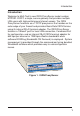
Introduction Introduction Welcome to Multi-Tech's new ISDN ProxyServer model number MTPSR1-202ST, a single, secure gateway that provides multiple LAN users with high performance Internet access. The ISDN ProxyServer functions as a TCP/IP proxyserver that resides on the outer edge of your firewall and provides Basic Rate ISDN Service using its internal 2B+D terminal adapter.
ISDN ProxyServer Quick Start Guide Related Documentation The ISDN ProxyServer Quick Start Guide is intended to be used by qualified systems administrators and network managers. This quick start guide provides the necessary information for a qualified person to unpack, cable, load software, and configure the unit for proper operation. A detailed User Guide is also provided with your ISDN ProxyServer.
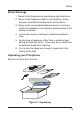
Safety Safety Warnings 1. Never install telephone wiring during a lightning storm. 2. Never install telephone jacks in wet locations unless the jack is specifically designed for wet locations. 3. Never touch uninsulated telephone wires or terminals unless the telephone line has been disconnected at the network interface. 4. Use caution when installing or modifying telephone lines. 5. Avoid using a telephone (other than a cordless type) during an electrical storm.
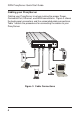
ISDN ProxyServer Quick Start Guide Cabling your ProxyServer Cabling your ProxyServer involves making the proper Power, Command Port, Ethernet, and WAN connections. Figure 3 shows the back panel connectors and the associated cable connections. Table 1 details the procedures for connecting the cables to your ProxyServer. ISDN PHONE 10BASE T COMMAND PORT ON POWER OFF Power Connection Telco Connection PC Connection Ethernet Connection Figure 3.
Cabling Table 1. Cabling Procedure Step Procedure 1 Connect one end of the power supply to a live AC outlet and connect the other end to the ProxyServer as shown in Figure 3. The power connector is a 6-pin circular DIN connector. 2 Connect the ProxyServer to a PC by using the short RJ45 to DB25 (female) cable provided with your unit. Plug the RJ45 end of the cable into the Command Port of the ProxyServer and the other end into the RS232 cable from the PC serial port. See Figure 3.
ISDN ProxyServer Quick Start Guide Before You Start Loading your Software Consider the following choices before you configure your ProxyServer and record your selections on the following pages; then refer to them while loading your software. Network Configuration ü Network Switch Type_______________________________ Select the network switch type your ISDN service provider uses at its local central office. You can set the ProxyServer to NET3 (DSS1), 1TR6, VN4, INS64, NI-1, AT&T 5ESS, or DMS-100.
Software Note: For DMS-100 switches, any ASCII character except the underline (_) character is valid. For NI-1 and AT&T switches, only the digits 0-9 are valid. ü Voice SPID________________________________________ The voice SPID is assigned by the local phone company and is for the specific BRI line to which the ProxyServer will be attached. The voice SPID string can have up to 20 characters. The data SPID is not used if the switch type is set to NET3.
ISDN ProxyServer Quick Start Guide conveying Calling Party information to the terminal for ISDN voice calls.
Software MLPPP Protocol The MLPPP (Multi-Link PPP) protocol provides rates up to 64K bps per channel. This protocol uses both B channels at once, providing an aggregate data transmission speed of 128K bps. ü Dialing Method _____________________________________ Select either the “Enbloc” or the “Overlap” dialing method for use when establishing a data call. Your ISDN service provider determines the dialing method.
ISDN ProxyServer Quick Start Guide Loading your Software The following loading procedure does not provide every screen or option used in the process of installing the ProxyServer software. The assumption is that a technical person with a thorough knowledge of Windows and the software loading process is doing the installation. Additional information on the ProxyServer software is provided in the User Guide. 1. Run Windows on the PC that is connected to the Command Port. 2. Insert ProxyServer Version 2.
Software 4. Follow the on-screen instructions to install the ProxyServer software. 5. The following dialog box selects the COM port of your PC that is connected to the Command Port of the ProxyServer. From the Select Port list box, click on the down arrow and choose the COM port of your PC. 6. Click on OK to continue.
ISDN ProxyServer Quick Start Guide 7. Click on the Finish button to continue. 8. The “Do you want to download default setup?” dialog box is displayed. 9. Click on Yes to download the default setup. Clicking on the No button prevents the defaults from being downloaded to the ProxyServer.
Software IP Port Configuration This dialog allows for the configuration of IP parameters that are generally applicable to IP Proxying on all ports. 10. The default LAN IP address has to be changed to your unique LAN address. Change the default IP address, 192.168.0.1, to your unique LAN IP address. 11. If your ISP dynamically assigns the WAN port IP address, do nothing and proceed to the next step.
ISDN ProxyServer Quick Start Guide 13. Click on the Default Configuration supplied by your local ISDN service provider. Refer to your entry in Network Switch Type in Before You Start Loading Your Software in this chapter. 14. Click on the ISDN Dial Number field and enter the telephone number supplied by your ISDN service provider. The telephone number can be a standard local number or it can include a long distance prefix.
Software 17. Click on the Voice TEI field in Network Parameters. Refer to your Voice TEI entry in the Network Configuration section in Before You Start Loading Your Software. If the Voice TEI is different, click on the drop-down list arrow, then click on the selection that matches the Voice TEI supplied by your ISDN service (i.e., Disabled, Auto TEI, or zero to 63). 18.
ISDN ProxyServer Quick Start Guide 22. If US Parameters are active, enter the Data Directory Num(ber) supplied by your local telephone company and you recorded. If Europe Parameters are active, enter the Data Sub Address supplied by your local telephone company and you recorded. 23. If US Parameters are active, enter the Voice Directory Num(ber) supplied by your local telephone company and you recorded.
Software 26. The Writing Setup dialog box is displayed as the setup configuration is written to the ProxyServer. 27. Check to ensure that the Fail LED on the ProxyServer is Off after the download is complete and the ProxyServer is rebooted. 28. Win3.1 users - you are returned to your Program Manager where the Proxy Server Program Group and Program Item (Windows icons) have been created. Win95 users - you are returned to your ProxyServer folder which will be visible on your desktop.
ISDN ProxyServer Quick Start Guide Limited Warranty Multi-Tech Systems, Inc. (“MTS”) warrants that its products will be free from defects in material or workmanship for a period of two years from the date of purchase, or if proof of purchase is not provided, two years from date of shipment. MTS MAKES NO OTHER WARRANTY, EXPRESSED OR IMPLIED, AND ALL IMPLIED WARRANTIES OF MERCHANTABILITY AND FITNESS FOR A PARTICULAR PURPOSE ARE HEREBY DISCLAIMED.
82076801