
User`s manual



CP-134U Series User’s Manual Software Installation
3-23
“Configuring the Board and Ports,” for configuration details.
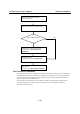
Once the board and the driver are installed and the driver restarts successfully, you can start
developing applications with PComm library (see “Serial Programming Tools”) or the Microsoft
Win32 API. You can also use applications such as Terminal Emulator (see “Serial Programming
Tools”), a PComm utility, or HyperTerminal, to transmit/receive data, as well as Remote Access
Service to provide dial-up networking capabilities.
Configuring the Board and Ports
Follow the procedures given below to re-configure the COM number of ports for boards already
installed under Windows 95/98.
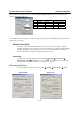
In addition to following the procedures listed below, you may also click on [Start] Æ [Programs]
Æ [MOXA Utility] Æ [MOXA Smartio/Industio Configuration Panel] Æ [Property] Æ [Port
Setting].
Since this is a PCI or Universal PCI board, once a new board is added or an existing board is
removed, the board’s configuration will be automatically added or removed by the operating
system when you restart the PC.
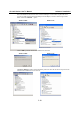
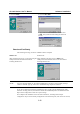
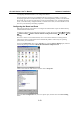
Open the [Control Panel], click on the [System] icon, select the [Device Manager] tab, and then
click on the plus sign to the left of Moxa Smartio/Industio multiport board.
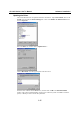
Click on one of the CP-168U boards, and then click on Properties.
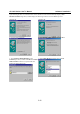
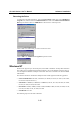
Select the Ports Configuration tab, click on a specific port, and then click on the Port Setting
button.