
Specifications





52 53
Using Memory
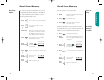
Edit by
Number
You will see:
1. Press and the 2-digit memory location
you want to edit.
2. Press when you finish
editing the phone
number.
3. Enter Enter the two-digit memory loca-
location tion where you want to store the
changed number. The display will
show the name stored with the
phone number you are editing.
4. Press to erase one letter at a time or
skip this step to leave the name
unchanged.
Enter Enter your changes to the name.
letters (See page 41 for details on enter-
ing names.)
5. Press when you finish
editing the name.
The display will show the new
information and ask if you want
to save your changes.
6. Press to save your changes. Your phone
will confirm your entry by display-
ing the location, number and name
you stored.
or
Press to leave the infor-
mation unchanged.
Enter Enter a new two-digit memory
location location to avoid overwriting the
information in the current location.
7. Press to exit the menu.
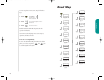
Editing a Memory Location
Locatn
__
Change?
Locatn
__
7. Press to erase one letter at a time or
skip this step to leave the name
unchanged.
Enter Enter your changes to the name.
letters (See page 41 for details on enter-
ing names.)
8. Press when you finish
editing the name.
The display will show the new
information and ask if you want
to save your changes.
9. Press to save your changes. Your phone
will confirm your entry by display-
ing the location, number and name
you stored.
or
Press to leave the infor-
mation unchanged.
Enter Enter a new two-digit memory
location location to avoid overwriting the
information in the current location.
10. Press to exit the menu.
Edit by
Name
Editing a Memory Location
Change?
Locatn
__
StarTac.prt 3/7/00 9:46 Page 52