
Specifications





Pause
Dialing
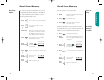
4. Enter Enter the next group of numbers,
numbers for example, an account number
or PIN number. If the automated
system requires a
*
or
#
, enter
those symbols, too.
5. Insert pause Insert another pause and enter
the next group of numbers by
repeating steps 2 through 4 as
many times as necessary. You can
store up to 32 digits, including
pauses. When you’ve entered the
entire sequence, store it as you
would any phone number.
6. Press to begin storing.
7. Enter Enter the two-
location digit memory
location where
you want the sequence stored.
8. Enter name Enter a name for your sequence.
(See page 41 for details.)
9. Press when you are finished entering
the name. Your phone will confirm
your entry by displaying the loca-
tion, number and name you stored.
Advanced Storing
Locatn
__
Alpha
Or
46 47
Using Memory
If you often find yourself calling Voice Mail systems, banking
by phone or using other automated calling systems, you will
appreciate the one-key convenience of Pause Dialing. Simply
save the access numbers as a linked sequence, and you’ll
never need to enter them again!
Here’s how it works: when you call automated systems, a
recorded message prompts you for PIN numbers, Voice Mail
numbers, etc. You can store these numbers in your phone’s
memory, separated by “pauses”— special characters that tell
your phone to wait before sending additional numbers.
To use your stored sequence, simply recall it and press and
hold the smart button or press to place the call.
When the recording prompts you for information, just
press the Smart Button or press and your phone
will send the next set of numbers that you stored. Press the
Smart Button or press as many times as necessary
to transmit all the numbers.
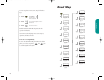
1. Enter Enter the phone number you use
number to access the automated system.
You will see:
2. Press then press
3. Press to insert a pause into the
sequence.
Pause
Dialing
Tip: You can use
the Smart Button
instead of
Advanced Storing
Insert
Pause o
StarTac.prt 3/7/00 9:46 Page 46