
Specifications





40 41
Using Memory
When the display shows “Alpha Or ,” you can use the
keypad to produce any letter in the alphabet by pressing the
numeric keys one or more times. Just use the letters printed
on each key as a guide and you can’t go wrong. For example,
press to enter the letters “A,” “B,” or “C” as shown:
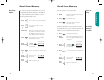
To enter a name into the Phone Book:
1. Enter letter Enter a letter by pressing a key
as many times as necessary.
2. Press to advance the cursor to the
next space.
Press or press to erase a letter if
you make a mistake.
3. Continue Continue with step 5 on the
storing previous page when you are
finished entering the name.
This is easier than it looks, so give it a try!
Entering Names
press 1 time to insert an “A”
press 2 times to insert a “B”
press 3 times to insert a “C”
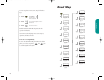
To take advantage of your phone’s internal Phone Book,
you’ll first want to store some names and numbers into
memory. With a little practice you’ll find it’s a piece of cake!
1. Enter Enter the phone number you
number want to store.
You will see:
2. Press to begin storing.
The phone will
prompt you for
a memory location.
3. Enter Enter the two-
location digit memory
location where
you want the sequence stored.
or
Press to store the sequence in the first
available location.
or
Enter digit Enter the first digit of the memory
location and press to store
the sequence in the first available
location beginning with that digit.
4. Enter name Enter a name to identify the phone
number, or skip this step and con-
tinue with step 5. (See the next
page for details on entering names.)
5. Press or press when you are
finished entering the name. Your
phone will confirm your entry by
displaying the information you
stored.
Tip: The
“”
symbol in your
display represents
the Smart Button.
Storing Names and Numbers
Locatn
__
Alpha
Or
StarTac.prt 3/7/00 9:45 Page 40